
01Keys are switches — a level needs a knob
A fader level, a camera zoom, an iris: things you turn, not things you press.
Keys are perfect for cuts, presets and mutes: one press, one state. Levels are a different job. Moving a mixer channel from −20 dB to −6 dB with keys means a "+1 dB" key pressed fourteen times, or a handful of fixed "−20 / −10 / 0" keys that are never exactly where you want to be. A camera zoom or an iris is the same: you want to turn it, and stop where it looks right.
The Stream Deck + has four dials and a touch strip above them for exactly this — but on its own, a dial only drives whatever one desktop app its plugin was written for, and its display shows what the dial sent, not where the device actually is. If the A1 moves the fader on the console, or a preset moves the zoom, the dial no longer knows.
In Fantago, a dial is a continuous control on any device Fantago drives: turn it and the X32 channel fader, or the pan, tilt or zoom of a PTZ camera, follows while you turn; its part of the strip shows the device's real value and follows it when something else moves it; push it and touch the strip for anything else.
Move a level
The device follows while the dial turns — a fader, a zoom, an iris, a focus — starting from where the device really is.
Act like a key
Back to 0 dB, a preset, a page change: anything a key can do, on press and release.
Tap the strip
A second action on the same dial — typically mute, with the strip turning red while the channel is muted.
The real value
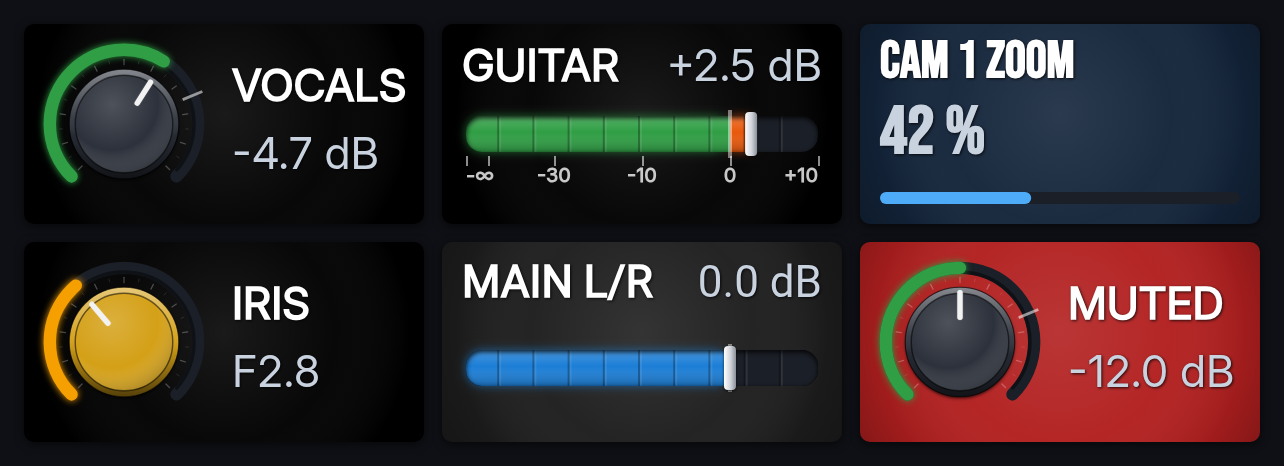
Title, value ("−4.7 dB", "42 %") and a fader or knob drawn like the panel controls, following the device live.
02From the box to a working dial
The Stream Deck + is a USB deck: it uses the Elgato software with the Fantago plugin.
- Install the Fantago plugin for the Elgato Stream Deck software: in Fantago's Stream Deck Builder, under Connected Devices, press Download Stream Deck plugin (it also works without Internet access; the Download page has the same file) and open it on the computer running the Elgato software. Then set the Fantago server address in its settings, as for any USB Stream Deck.
- In the Elgato software, drag "FantaGo Encoder" onto each dial you want Fantago to handle. That is the only thing done there: what the dials do is set up in Fantago.
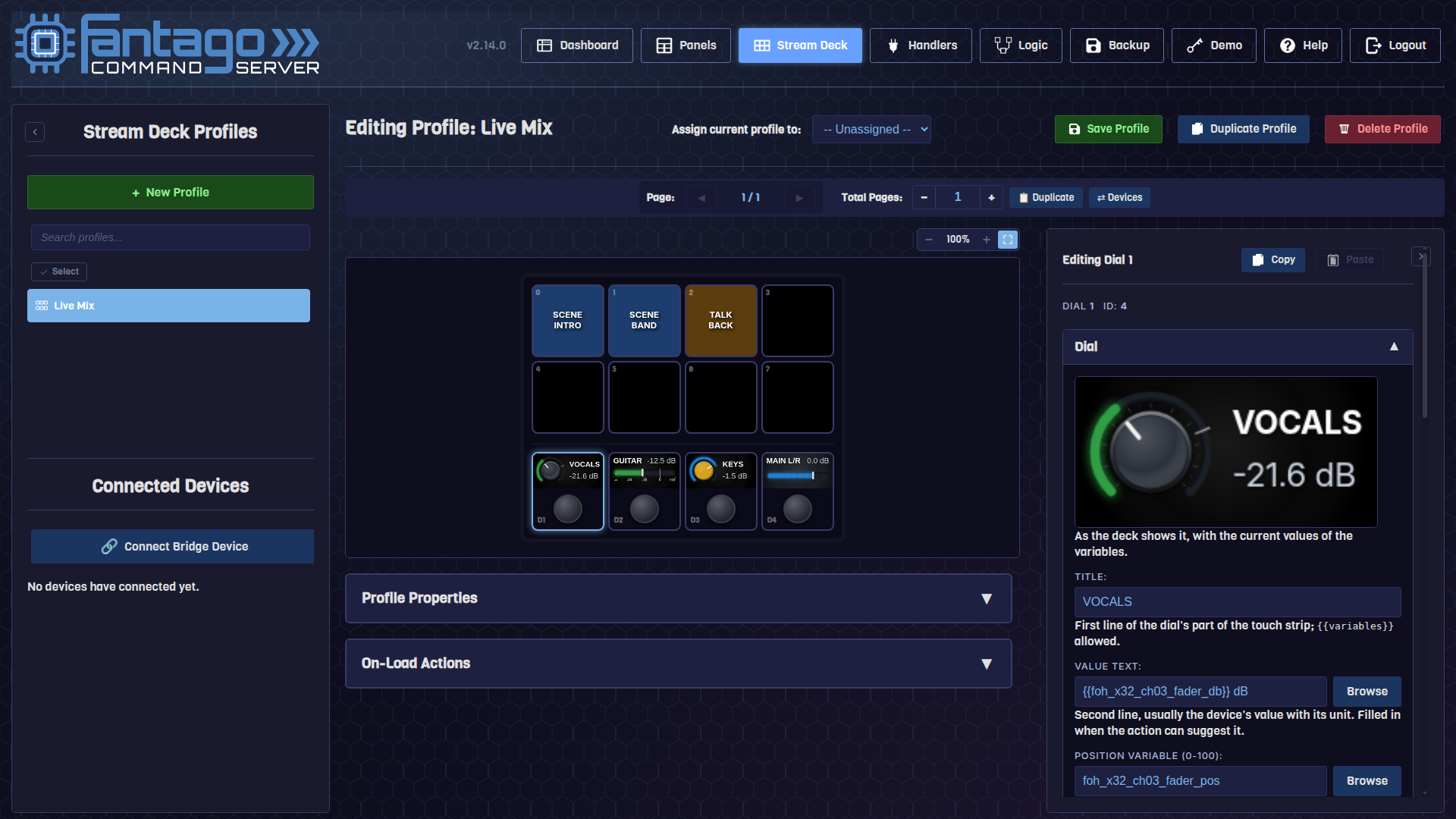
- In Fantago, Stream Deck → New Profile with Device Type Stream Deck + (4x2, 4 dials) — or Stream Deck + XL (9x4, 6 dials). The dials appear under the keys, each with its part of the touch strip.
- Select a dial and add an action under "When Turned": for a Behringer X32 "Fader: Adjust", for a Panasonic PTZ camera "Pan / Tilt: Adjust by", "Zoom: Adjust" or "Iris / Focus: Adjust by". Fantago fills in the rest — the step, the variable that says where the device is, the value text with its unit — and the strip preview shows the current value.
- Optionally add "When Pushed" and "When Touched" actions, pick a style for the strip under Strip Appearance, then Save Profile and assign it to the deck in Connected Devices.
03What the strip shows
The same graphics as the faders and rotaries of the Fantago panels, drawn for each dial's 200×100 part of the strip.
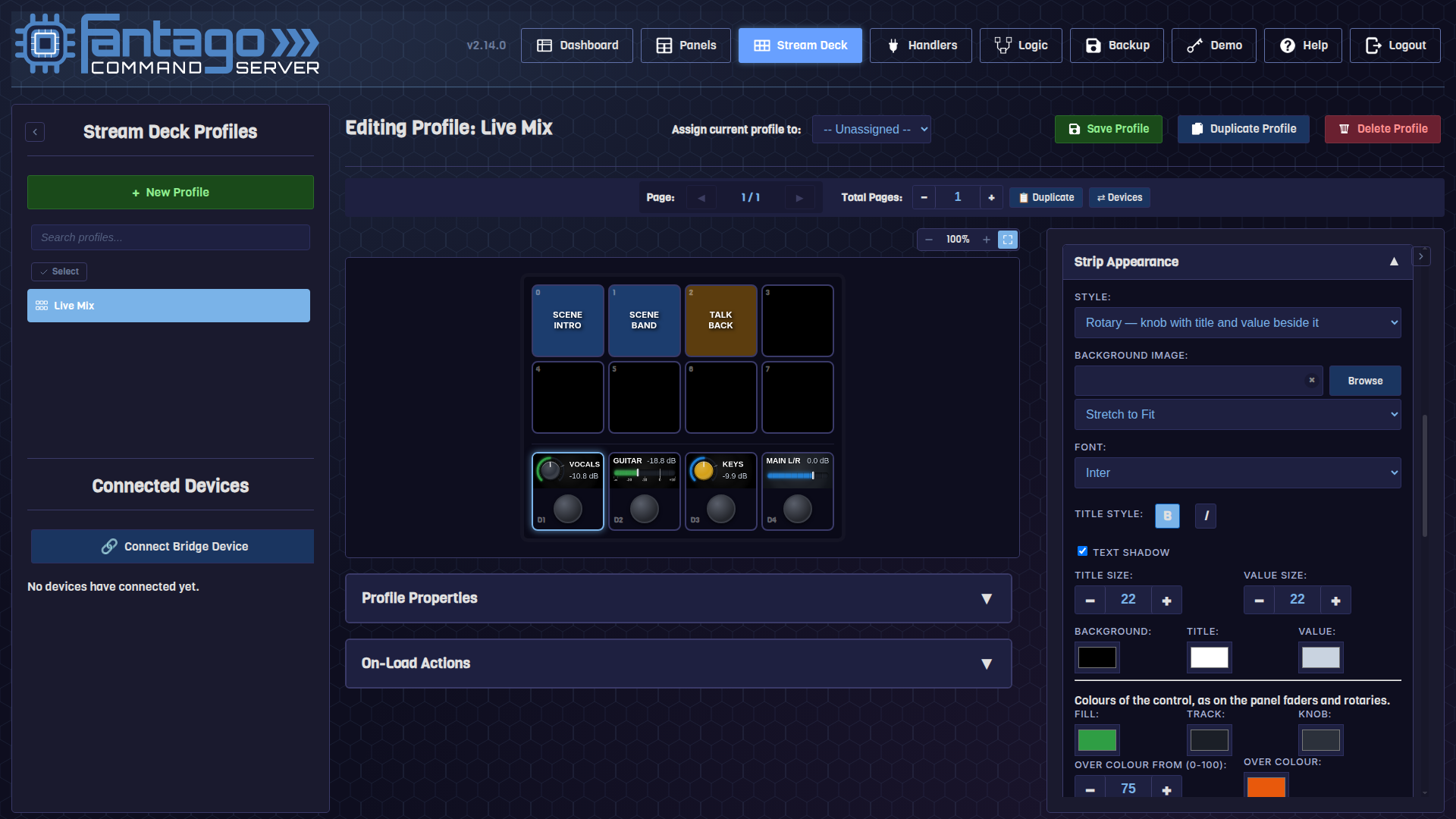
Each dial's part of the touch strip is drawn by Fantago, in one of three styles, with the look you give it — the same settings as a fader or rotary on a browser panel. To find them, click a dial (one of the wide tiles under the keys, not a key) and look at the Strip Appearance section of its panel: Style is its first field, and the preview at the top of the panel changes as you go.
| Setting | What it does |
|---|---|
| Style | Rotary: the knob, title and value beside it. Fader: title and value over a horizontal fader. Text: title, a large value, a thin bar. |
| Title / Value Text | Two lines of text; {{variables}} are replaced with their live values, e.g. {{x32_ch01_fader_db}} dB. |
| Position Variable | A 0–100 variable saying where the device is: it draws the knob or fader position. |
| Fill, Track, Knob colours | As on the panel controls. |
| Over Colour From | Past this position the fill changes colour, like the zone over 0 dB on a mixer fader. |
| Show Scale Marks | The device's own scale (−60, −30, −10, 0, +10 dB on an X32) under the fader or around the ring. |
| Background, font, sizes | Background colour or picture, font, bold, italic, shadow, title and value sizes and colours. |
04What the actions receive
For people writing their own actions, sequences of commands or handlers.
Every action under When Turned runs with four placeholders, the same ones a fader or rotary on a browser panel sends — so an action written for one works on the other:
| Placeholder | Value |
|---|---|
{{control_ticks}} | Steps turned since the previous command, with their sign (clockwise is positive). |
{{control_delta}} | Steps × the dial's Step Size. An "Adjust" action reads this one. |
{{control_percent}} | Where the device should end up, 0–100: the position variable plus the delta. Only with a position variable. |
{{control_value}} | The same position, for actions that take a value rather than a move. |
A generic TCP or UDP device without a Fantago handler can be driven the same way:
a command such as GAIN {{control_delta}} under When Turned
sends the move as it happens.
05Why it feels like a real control
Three details that make the difference between a dial and a "+1" key on a timer.
Sent as you turn
A command at most every 40 ms while the dial turns; the steps turned meanwhile are added up, so a fast spin loses nothing and a slow one is never late.
Starts where the device is
An Adjust action moves the device from its real state, not from where the dial thinks it left it: a fader moved on the console is picked up from there.
Follows the device
The strip is redrawn from the device's own variables: what you see is where the fader or the lens is, also when something else moves it.
06Frequently asked questions
Does it work with the Stream Deck + XL?
Yes: pick Stream Deck + XL (9x4, 6 dials) as Device Type. Each dial has the same 200×100 part of the strip as on the smaller model, and everything else is identical.
Which devices can a dial drive?
Any device with an action that takes a move or a position. Handlers with a dedicated "Adjust" action set the dial up for you — the Behringer X32 / Midas M32 faders and the Panasonic PTZ pan, tilt, zoom, iris and focus among them — pan and tilt in degrees, so the strip reads "−12.5°"; for any other device, use the placeholders in the command or the parameters.
Can different pages give the dials different jobs?
Yes. A dial belongs to a page, like a key: page 1 can hold the channel faders and page 2 the camera lens, and duplicating a page duplicates its dials too.
The strip shows the variable name instead of a value
The variable does not exist yet, or is written differently: the device may not have answered since Fantago started, or the device was renamed after the dial was set up. Use the Browse button next to the field to pick the variable from the live list.
What about the two dials of the Stream Deck Studio?
On the Studio they change page, one per half of a split layout. Setting them up as level controls is not available yet.