
01What Logic Flows are for
Conditional automation, built with nodes instead of code.
A panel button and a Command Sequence both do one thing: something presses them, and a fixed chain of commands runs. A Logic Flow is different — it reacts to a condition rather than a press, and it can branch: when this variable changes, and only if it now holds this value, do one of several different things. It is the layer that turns "I have to remember to do X when Y happens" into something Fantago does for you, every time, without anyone watching for it.
React to change
A variable changing, a device going offline or online, a timer firing, a button press anywhere in the system, or an HTTP/TCP/UDP trigger from outside.
Decide
AND/OR/NOT gates, If/Branch/Switch nodes, time windows, debounce — so the same trigger can lead to different outcomes depending on what else is true.
Act on anything
Run a device command or sequence, set a variable, call an external HTTP API, send an email, style a button, notify the dashboard, write to the log.
Require code
The whole thing is built as connected nodes on a canvas. Nothing here is a script — though an HTTP Request node can call one if you have it.
02A first flow: alert when a device goes offline
Three nodes, wired together in the Logic Builder canvas — the example this guide keeps coming back to.
- Logic → New Flow. Name it, leave Enabled checked.
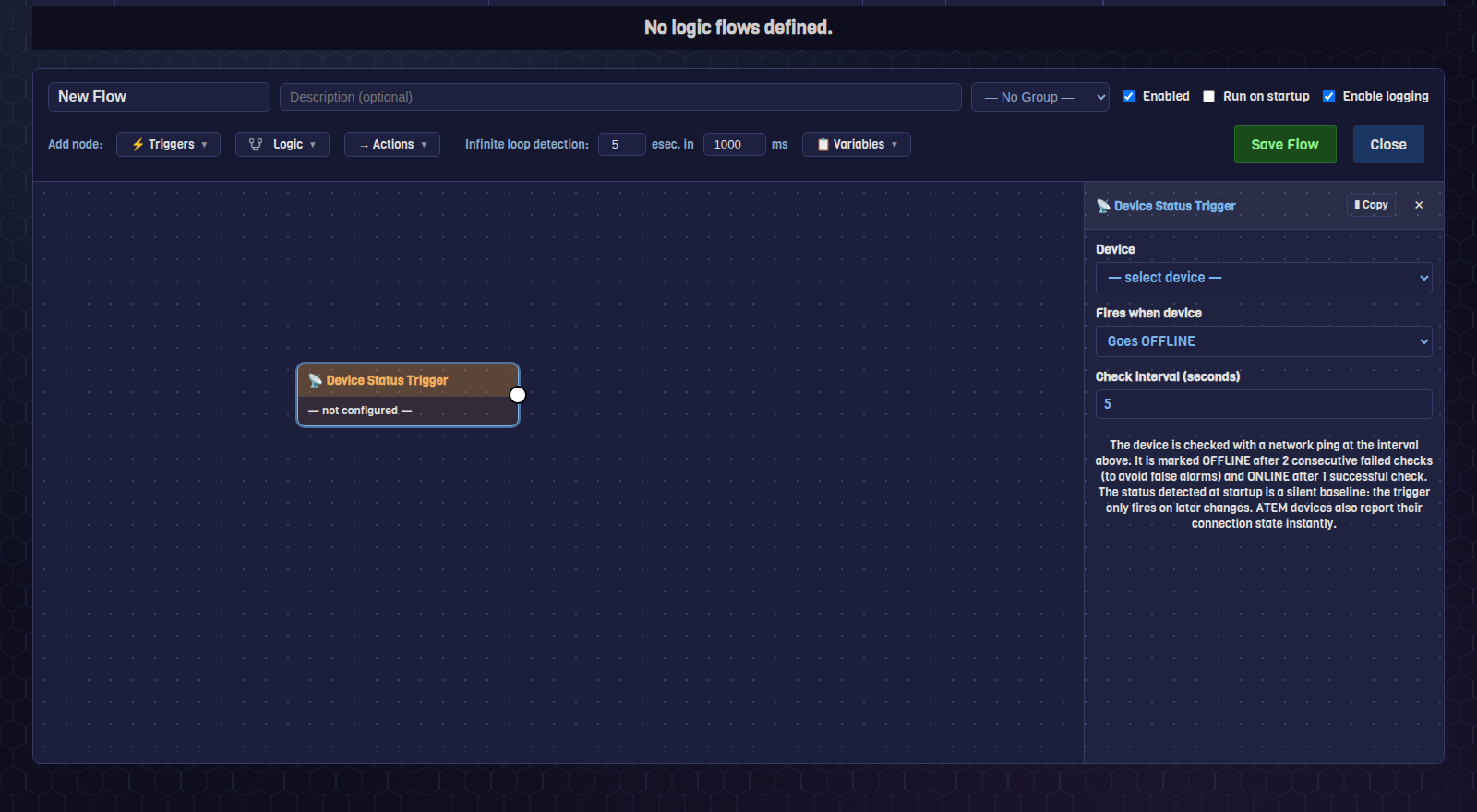
- Add a Device Status Trigger. Add node → Triggers → Device Status Trigger, then in its panel on the right: pick the device (your ATEM, a HyperDeck, anything with monitoring available) and set Fires when device → Goes OFFLINE.
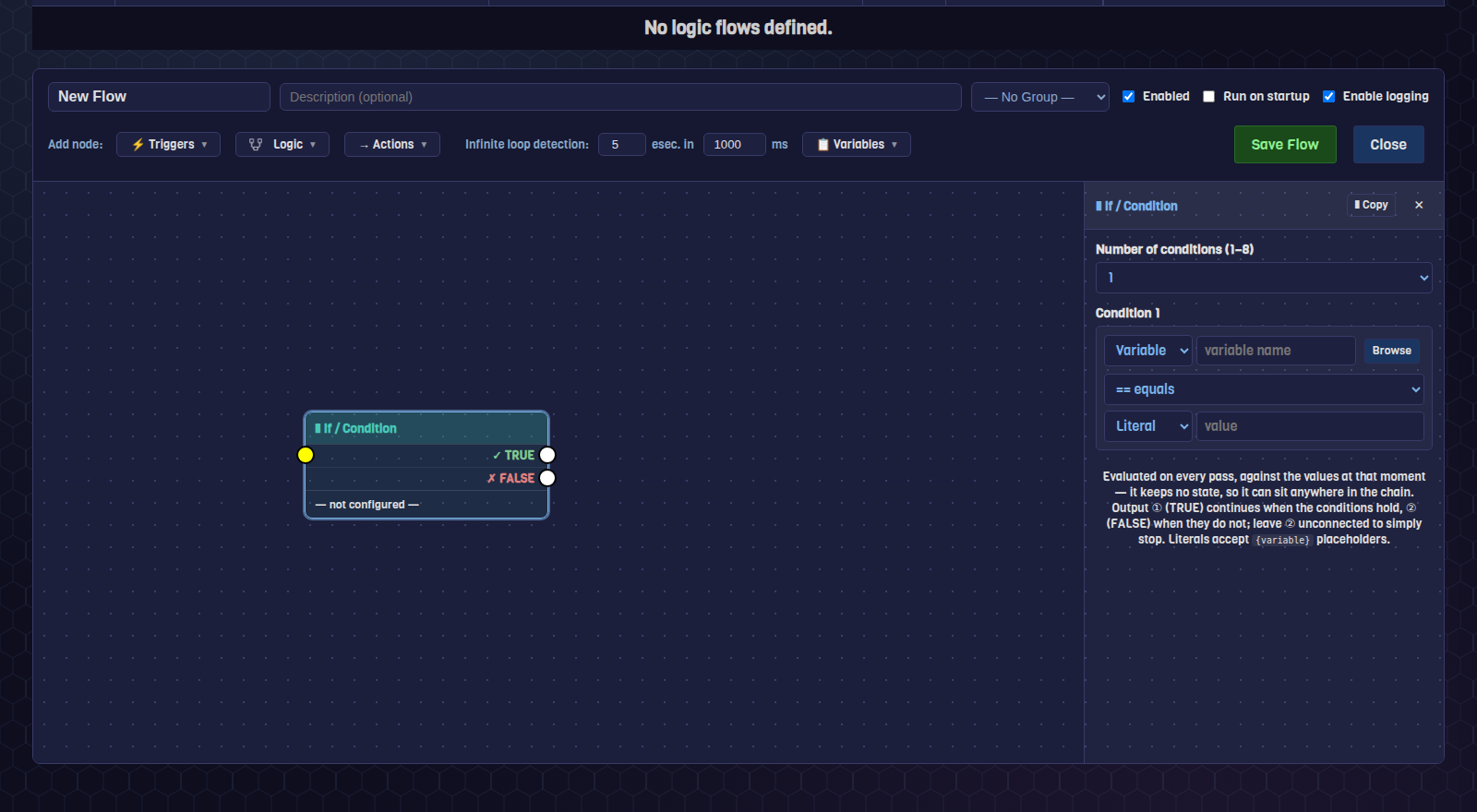
- Add an If / Condition node. Add node → Logic → If. For this flow you do not strictly need it — the trigger already only fires on the transition you asked for — but it is where you would add a second condition, such as only alerting outside a maintenance window (see Time Window below).
- Add a Dashboard Notify and a Log node from Add node → Actions, and connect the If node's TRUE output to both — one output can feed more than one node. Write the notification title and message; enable Also write to Fantago log if you want the same event to also land in the permanent log without a separate Log node.
- Save Flow. Disable the device (or unplug it) to see the toast arrive on every open Fantago page within a few seconds.
03The building blocks
Three palettes — Triggers, Logic and Actions — cover everything a flow can start from, decide on, or do.
Triggers — what starts a flow
| Node | Fires on |
|---|---|
| Trigger (variable) | Any custom or system variable changing value |
| Compare Variables | Two variables (or a variable and a literal) satisfying a comparison — re-evaluated on every change |
| Timer | A recurring interval, cron-style schedule |
| Timer Event | START / STOP / RESET / RESTART of a specific countdown or counter timer |
| Button | A specific button being pressed, on a specific panel or Stream Deck key |
| Device Status | A device going online or offline |
| Flow Start | The moment this flow itself is triggered — the entry point for a flow meant to be called from another flow via Flow Control |
Logic — deciding what happens next
| Node | What it does |
|---|---|
| AND / OR / NOT | Combine trigger conditions — only trigger nodes may feed a gate, so it always has something concrete to re-check |
| If / Branch | Up to 8 conditions with a TRUE/FALSE (If) or per-condition (Branch) output |
| Switch | Routes down one of several named outputs based on a variable's value, instead of a chain of Ifs |
| Debounce / Wait | Suppress rapid repeats, or hold until a condition becomes true |
| Delay / Dynamic Delay | Pause before continuing — fixed, or computed from a variable |
| Repeat | 1–1000 iterations with an interval, each a fresh pass down its Loop output |
| Time Window | True only inside a time-of-day range — aware of ranges that cross midnight |
| Relay | Passes a signal through unchanged — useful for tidying a busy canvas |
Actions — what a flow actually does
| Node | What it does |
|---|---|
| Command / Sequence | Send a device command, or run an existing Command Sequence |
| Set Variable / Toggle / Counter | Write a value, flip a latch, increment or reset a counter |
| Math / Clamp-Map | Arithmetic, or rescale a value from one range to another |
| String Template / Transform | Build text from variables, or run operations like uppercase, trim, regex extract/replace, JSON extract |
| HTTP Request | Call an external API — Success/Error outputs, response and status land in variables, {var} templating in URL/headers/body |
| Flow Control | Trigger, enable or disable another flow (a self-trigger is blocked automatically) |
| Style | Override a button or Stream Deck key's colour, label or blink at runtime — in memory, so a restart clears it unless the flow re-applies it on startup |
| Notify / Log | A toast on every open dashboard page, and/or a permanent log line |
| Send Email / Random / Timer Action | Send mail through the configured SMTP account, pick a random value, or start/stop/reset a timer |
{variable_name} placeholders, resolved once when that node
runs. This is different from the double-brace {{variable}} placeholders
used in device command text, which stay live-bound on a panel and are resolved by
the browser, not the flow engine.04Guarding against runaway flows
A flow that reacts to a variable it also sets can trigger itself. Fantago catches that before it floods the system.
It is easy to build a chain where flow A sets a variable that triggers flow B, which sets a variable that triggers flow A again. Every flow has a built-in circuit breaker for exactly this: set Infinite loop detection (top of the flow editor) to a maximum execution count and a time window — the default is 5 executions in 1000 ms. Cross that limit and the flow disables itself and reports why, rather than spinning silently in the background.
05Watching it run
A flow that fires silently is hard to trust. Fantago gives you three ways to see it working.
Verbose engine logs
The checkbox at the top of the Logic Flows list prints every evaluation to the message log while you build and test — turn it off once a flow is proven.
Dashboard toasts
A Notify node's message appears on every open Fantago page — Dashboard, Panel Viewer, Logic Builder — with a 🔔 bell keeping the last 50 (cleared on restart).
The message log
A Log node, or "Also write to Fantago log" on a Notify node, leaves a permanent [FLOW] line — searchable the same way as SENT/RECEIVED device traffic.
06Frequently asked questions
Logic Flow vs. Command Sequence vs. panel button — which one?
A button runs when pressed. A Sequence runs a fixed list of commands, in order, when started — by a button, a schedule or a flow. A Logic Flow is the only one of the three that starts itself, based on a condition, and the only one that can branch.
Can a flow trigger another flow?
Yes, with a Flow Control node — trigger, enable or disable a target flow by name. Self-triggering is blocked to stop an immediate infinite loop; an indirect cycle (A→B→A) is caught by loop detection instead.
Do flows keep running if I close the Logic Builder tab?
Yes — flows run server-side, independent of any open browser tab. The builder is only where you design and watch them; closing it does not pause anything.
What happens to a Style override after a restart?
Runtime style overrides from a Style node live in memory and are cleared on restart. If a flow's appearance should survive a reboot, give it Run on startup so it re-applies itself.