

Fantareel Support, Manual and FAQ
What you see in the program is what goes on air: read chapter 1 first, then jump to what you need.
Search Results
1. Getting started
User manual · select a topic to expand it
Windows. Run FantaReel-Setup-x.y.z.exe. If Windows SmartScreen says "Windows protected your PC", click More
info › Run anyway (the installer is not code-signed yet). Choose the options:
- Desktop icon
- Open .frl rundowns with Fantareel — double-click a rundown in Explorer to open it
- Firewall rule for the remote control — only if another computer (Fantacore, a Stream Deck PC) will control Fantareel
If a Blackmagic DeckLink card is used, install Desktop Video 15.3 or later from Blackmagic Design first; the setup warns you if it is missing but installs anyway (Fantareel then runs with its software clock).
macOS. Open the .dmg, drag Fantareel to Applications, start it. Allow the camera, microphone and local-network
requests: they are needed for cameras, audio inputs and NDI®.
A splash screen shows the version while the output starts. The main window opens with an empty rundown. In the title row you see the output state (green dot), the clock and, until you activate a licence, the UNLICENSED badge.
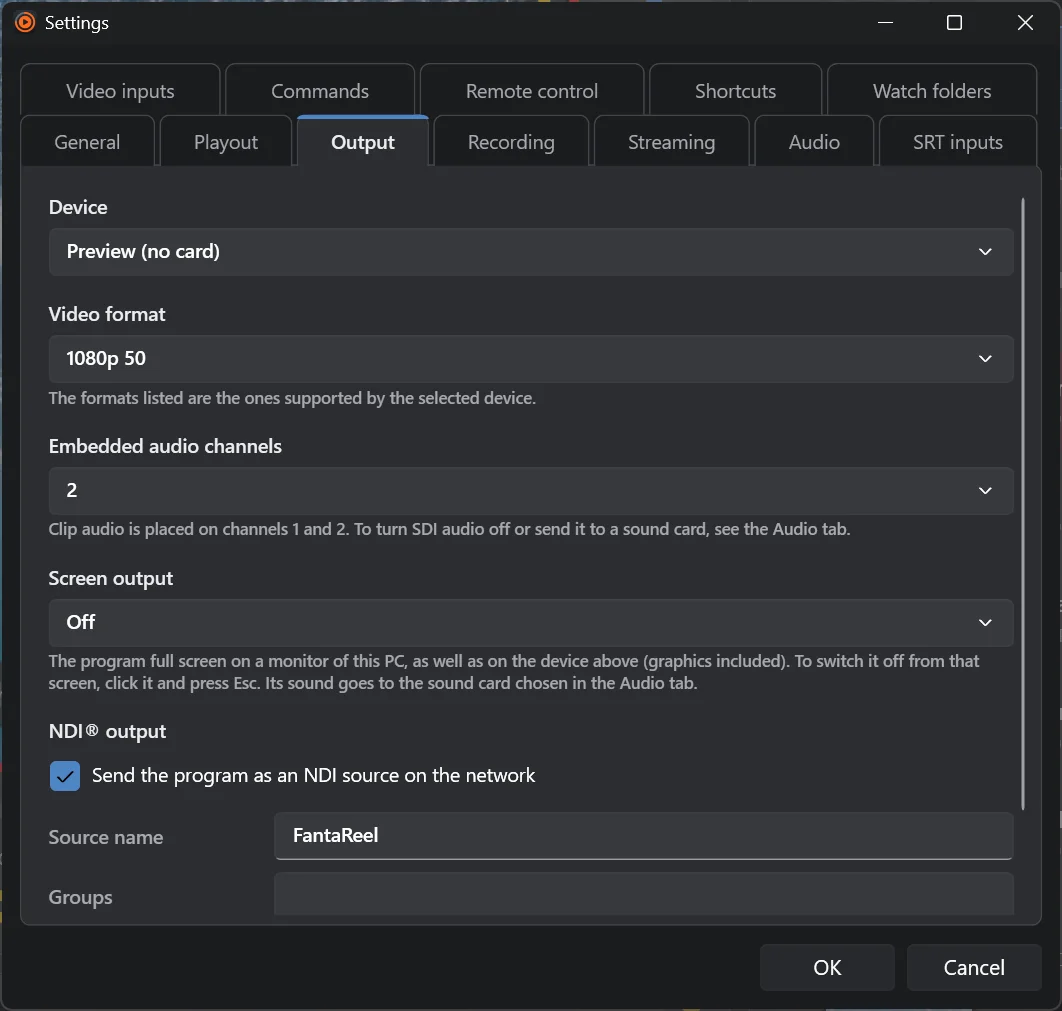
Settings (gear, top right) › Output.
- Device — your DeckLink output, or Preview (no card) for the software clock.
- Video format — 720p50 to 2160p50; the list shows what the device supports.
- Embedded audio channels — 2, 8 or 16 in the SDI signal.
- Screen output — a monitor of this PC to show the program full screen (Esc on that screen switches it off).
- NDI® output — send the program as an NDI source, with its name and groups.

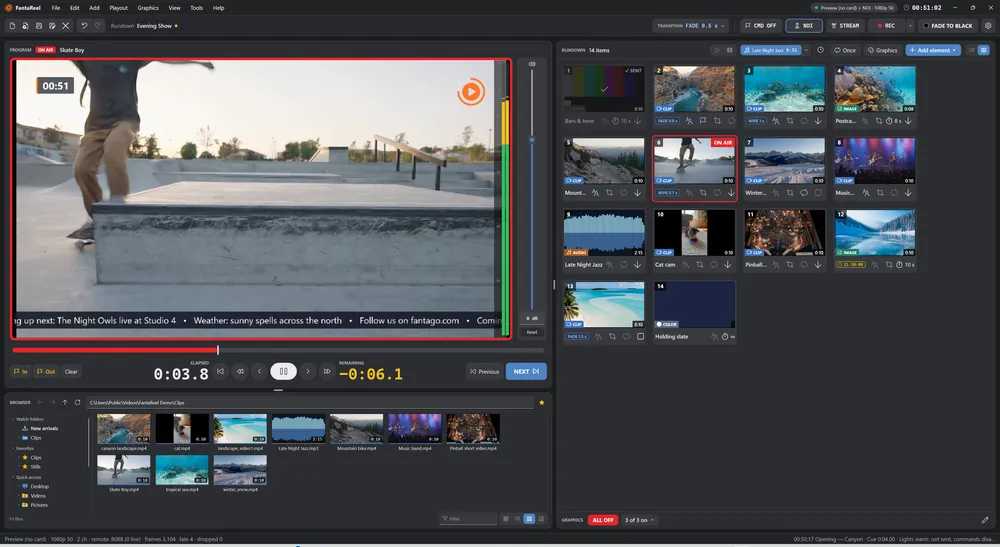
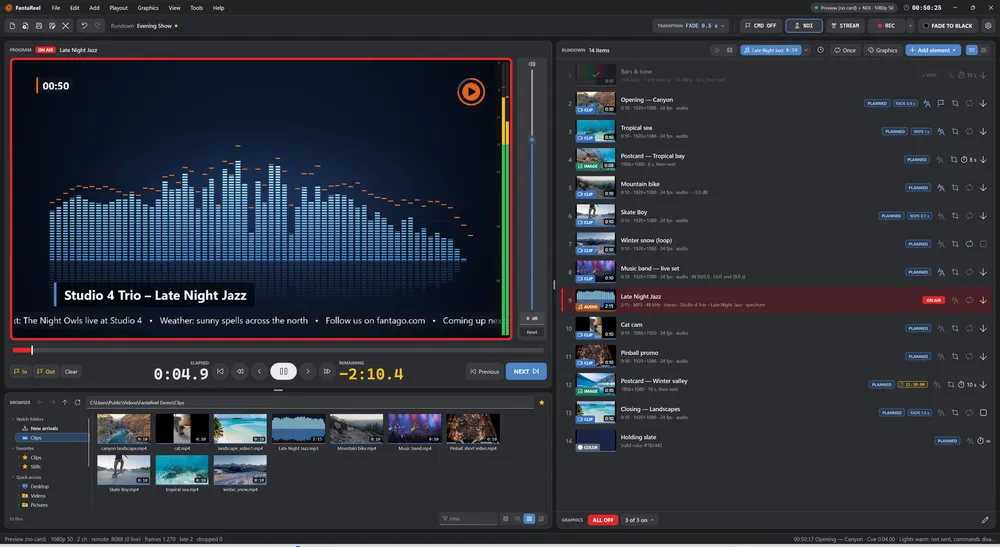
- Title row — menus, output state, clock, window buttons.
- Toolbar — new / open / save / save as / close, undo / redo, rundown name (a dot = unsaved), Transition, CMD, NDI, STREAM, REC, Fade to black, Settings.
- Program — the picture on air with its graphics, the peak meter and the item's volume fader.
- Timeline and transport — marks In / Out, elapsed and remaining counters, transport buttons, Previous / Next.
- Browser — the files of your folders and watch folders.
- Rundown — the show, with Play / Pause of the item on air, audio bed, schedule, repeat, Graphics and Add element.
- GRAPHICS bar — the rundown's overlays on and off.
- Status bar — output statistics and the last message.
- In the browser, open the folder with your clips.
- Drag them into the rundown (or double-click them).
- Press Space: the first item goes to air. Press it again for the next one.
- Fade to black when you are done. Ctrl+S saves the rundown.
2. The rundown
User manual · select a topic to expand it
- Drag files from the browser or from Explorer / Finder into the list (several at once).
- Double-click or Enter on a file in the browser: added after the selected item.
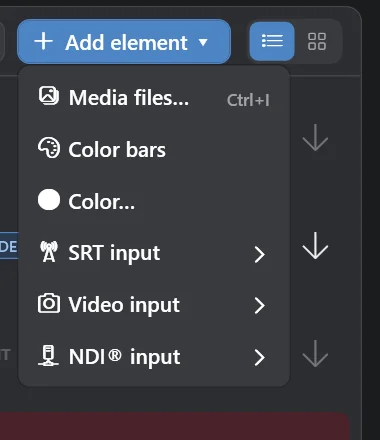
- Add element ▾ (rundown header) or the Add menu: Media files… (Ctrl+I), Color bars (bars and 1 kHz tone), Color…, SRT input ›, Video input ›, NDI® input ›.
- Drop a file onto the program to put it on air at once.
View › Sequential list / Cart machine (or the two buttons at the top right of the rundown). In the list, items play in order with Next / Previous. In the cart, every item is a card: a click puts it on air.
Thumbnail with kind (CLIP, IMAGE, AUDIO, BARS, COLOR, SRT, LIVE) and duration; title and technical line; on the right the status badge, the transition badge, and buttons for graphics, cues, framing, loop and end action (or display time).
- Planned — still to go.
- On air — the red row.
- Sent — it has been on air since the rundown was loaded; the row steps back, the thumbnail gets a check.
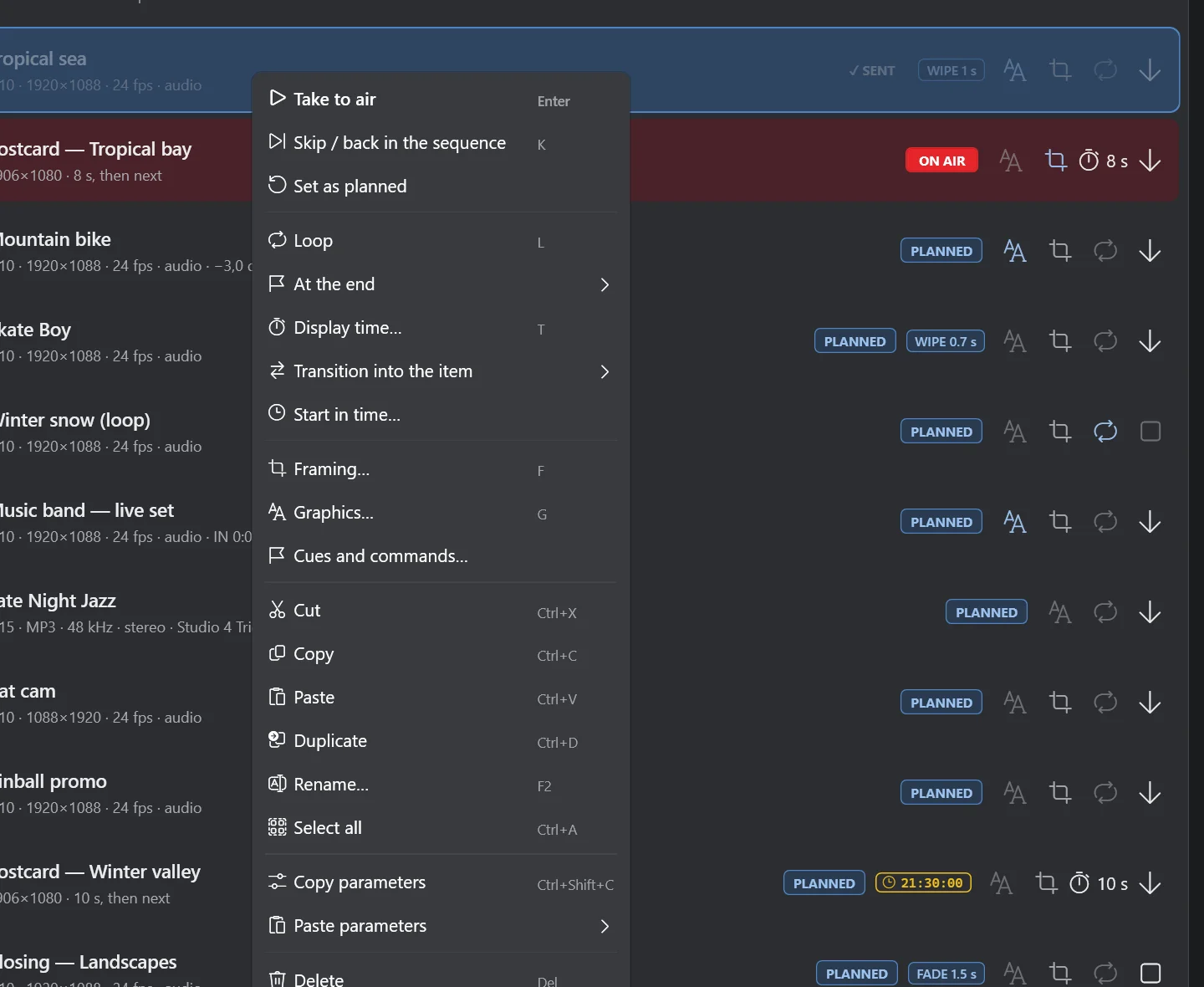
- Skipped (right-click › Skip, key K) — Next and the end actions go past it; a click still takes it. Right-click › Set as planned puts the selected items back (Ctrl+A first for the whole rundown). A scheduled start and each new pass of a repeated rundown put every item back to planned by themselves.
Ctrl + click and Shift + click select (they never take); Ctrl+A selects all. Then cut, copy, paste, duplicate, delete, move up / down, drag, and change loop, end action, display time, transition or framing for all of them. The buttons of a selected row act on every selected item.
Right-click an item › Copy parameters (Ctrl+Shift+C), select others › Paste parameters (Ctrl+Shift+V) — all, or just Playback, Audio, Transition, Framing, Graphics or Cues. The media, title and marks are never copied.
Ctrl+Z / Ctrl+Y (or Ctrl+Shift+Z), the arrows in the toolbar or the Edit menu: 200 steps of the rundown, its graphics, the default transition and the view. A slider dragged or a text typed is one step.
Rundowns are .frl files (they keep items, the rundown's graphics, the audio bed and the repeat). File › New / Open /
Save / Save as / Close, or the first buttons of the toolbar. Settings › General › Reopen the last rundown opens it at
start-up.
3. Playing out
User manual · select a topic to expand it
- Space, → or Page Down: next item. ← or Page Up: previous item.
- Enter: take the selected item.
- Click an item: by default it goes on air and plays; Settings › General › Clicking an item can make it go on air paused on its first frame instead (Play, P or a double-click then starts it). A take is applied on the next frame. If a clip is not ready yet, the previous item stays on air until it is.
Under the program: back to the start (Home), one second back, one frame back (,), Play / Pause (P), one frame forward (.), one second forward; click or drag on the timeline to seek. Shift+Home goes back to the start and plays.
- In / Out buttons set the marks at the playhead; Clear removes them. Marks take effect from the next start.
- Loop (row button or L): the clip plays again from its mark in.
- At the end (row button or right-click): Stop on the last frame, Go to black, Next item.
- Display time (T) for images, colours and bars: how long they stay before their end action.
The vertical fader next to the program sets the level of the item on air (also typed in dB, or with the mouse wheel); Reset goes back to 0 dB. The level is stored in the item.
The Transition button of the toolbar opens the panel: length (presets 0.25 – 3 s), Cut / Fade / Wipe and the 15 wipe shapes. This is the default transition, also used by Fade to black. Each item can have its own: right-click › Transition into the item.
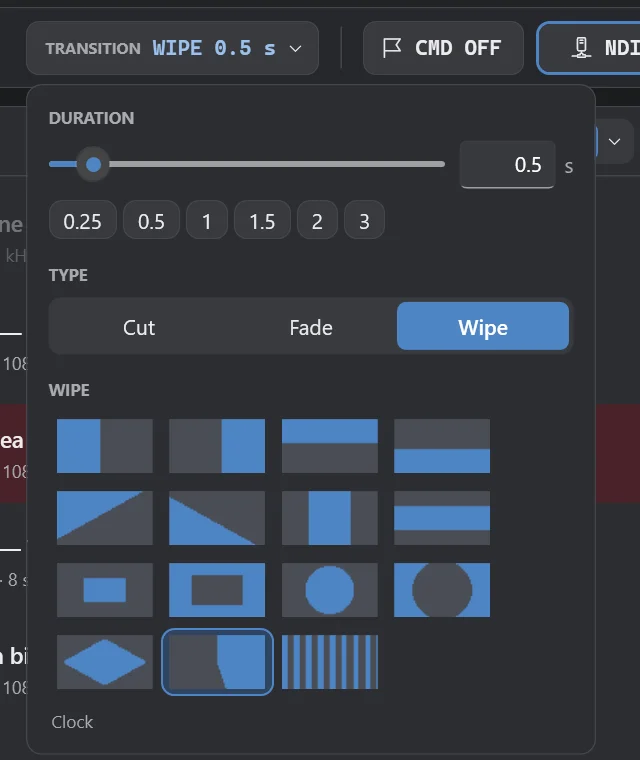
Fade to black (toolbar) fades the program out with the transition's length. Ctrl+B cuts to black.
There is no preview channel: rehearse an item on the output (with the output not routed to air), adjust volume, marks and loop, and they stay in the item. Cue commands are not sent unless CMD is armed (chapter 8).
4. Images and framing
User manual · select a topic to expand it
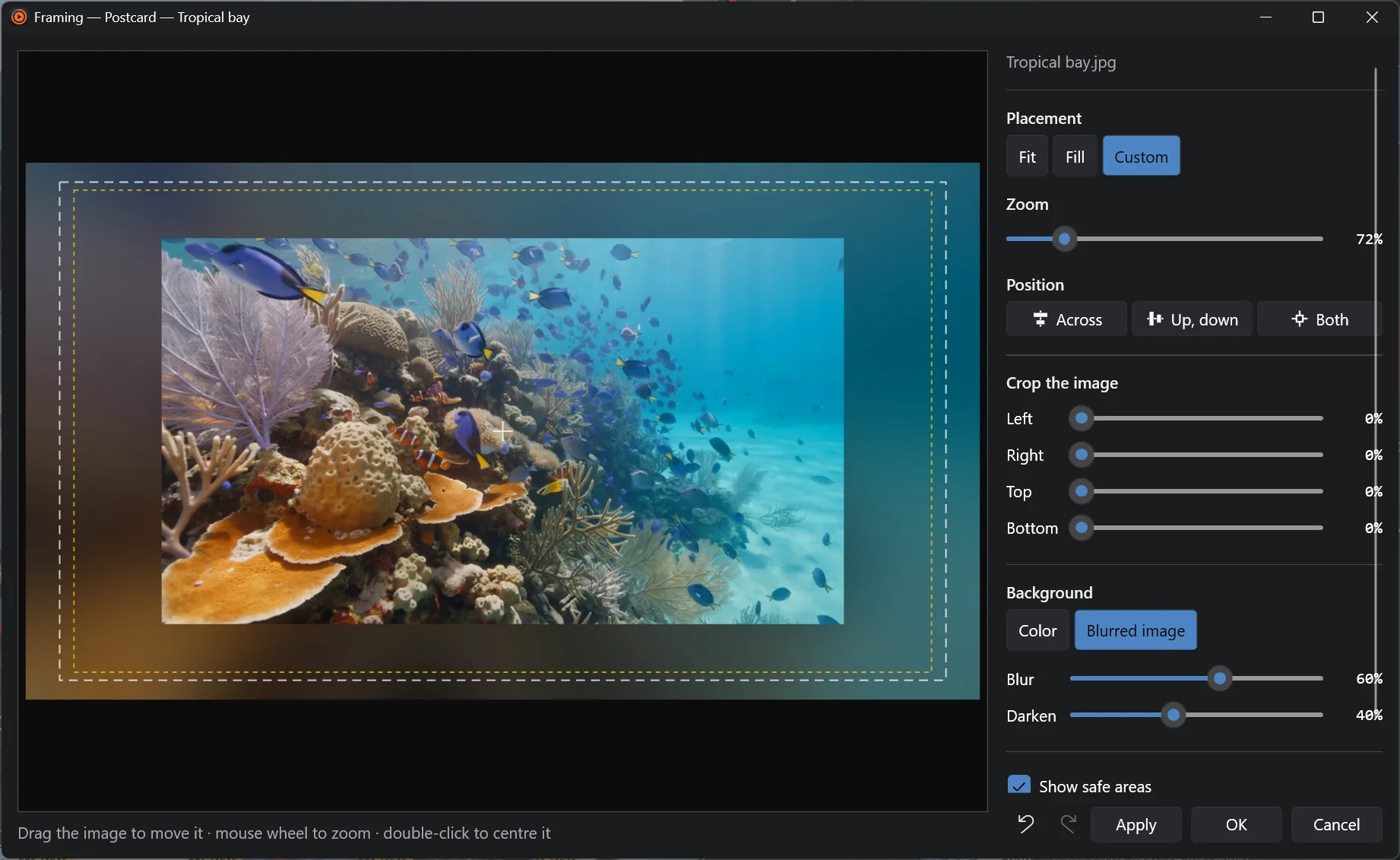
Right-click an image (or a clip) › Framing… (F).
- Fit — the whole picture with bars; Fill — the frame filled, the excess cut; Custom — your zoom and position (drag the picture, mouse wheel to zoom, double-click to centre).
- Crop the image — left, right, top, bottom.
- Background — a colour, or the blurred image itself with blur and darken (great for portrait photos).
- Show safe areas. Apply changes the item on air at once; OK closes.
5. Graphics
User manual · select a topic to expand it
- Item graphics (right-click › Graphics…, G): shown while that item is on air, they come and go with it.
- Rundown graphics (the Graphics button of the rundown header): logo, clock, crawl… switched from the GRAPHICS bar under the rundown: ALL ON / ALL OFF and the "n of m on" list with one toggle each. They can be set to come on when the rundown opens.

- Layers on the left (Add ▾: Title, Clock, Crawl, Roll, Image…, Video clip…). The top of the list is drawn on top; drag to reorder.
- Stage in the middle: the real program underneath. Click to select, drag to move, the corner square to size the box (Shift keeps the proportions), double-click to type, right-click for copy / paste / order / centre. Ctrl + wheel zooms; Fit and 1:1; Safe areas; Motion previews crawls and fades.
- Properties on the right: text and font, style, colour, outline, shadow (colour, opacity, distance, direction, softness), box (colour, opacity, corners, padding, accent bar), arrange (order, align to frame / safe area / selection, distribute), position in pixels with a nine-point anchor, box size, fades, clock format, crawl speed and direction, clip loops and crop.
- Apply shows the changes on air and keeps the editor open; undo / redo under the layers.
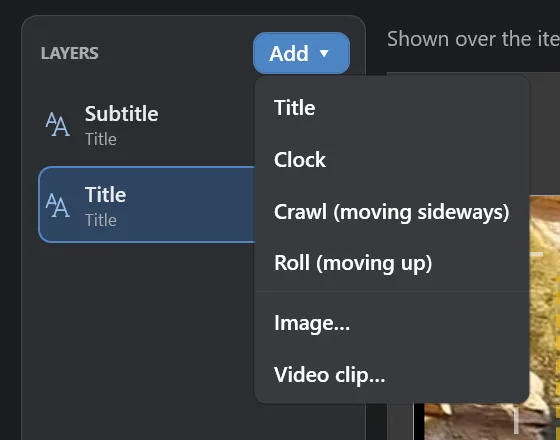
Add › Image… or Video clip…: the file is copied into Documents\FantaReel\Graphics media, so the rundown keeps working
if the original moves. PNG with alpha, ProRes 4444, QuickTime Animation… keep their transparency. A clip plays once, n
times or for ever, from its start each time the graphic comes on.
6. Audio
User manual · select a topic to expand it
MP3, WAV, AIFF, FLAC, M4A, AAC, OGG, Opus, WMA, AC-3, MP2 play like clips. Right-click › Audio picture and caption: Spectrum (default), Waveform or Black, and the caption (track title from the tags, file name, or none).
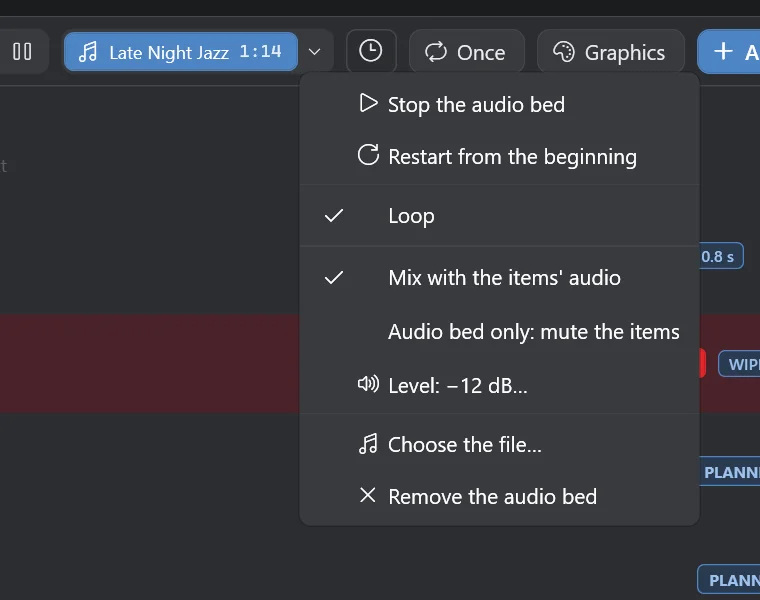
The button right after Play / Pause in the rundown header. Without a bed it asks for a file (audio, or a video whose sound you want). Click to play / stop (with fades); while it plays it is lit and shows the time. The ▾ menu: Restart from the beginning, Loop, Mix with the items' audio or Audio bed only: mute the items, Level…, Choose the file…, Remove. The bed goes to channels 1-2 of every output, black included. It is saved with the rundown.
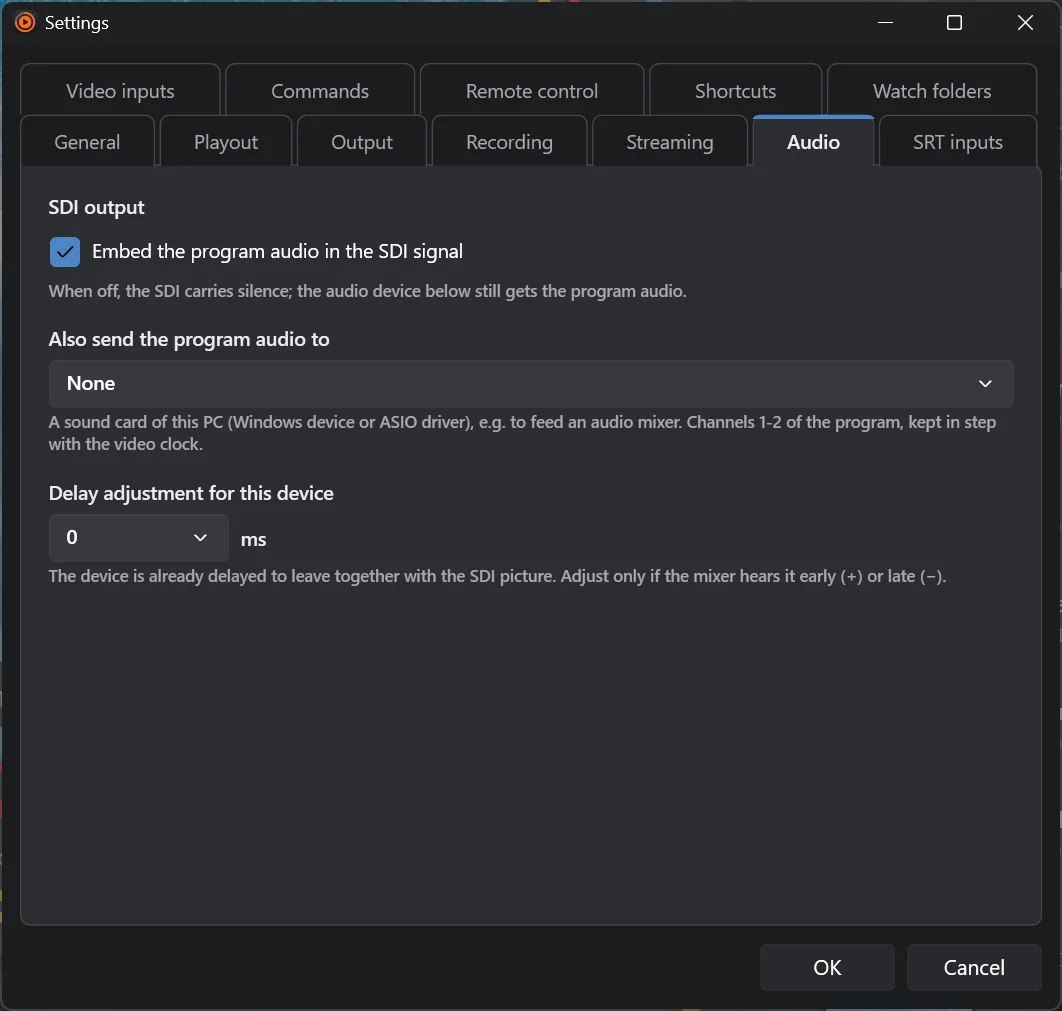
Settings › Audio: embed the program audio in SDI (on / off) and/or also send it to a sound card (Windows: WASAPI or ASIO with the output pair; Mac: Core Audio), with a delay adjustment if the mixer hears it early or late.
7. Live inputs
User manual · select a topic to expand it
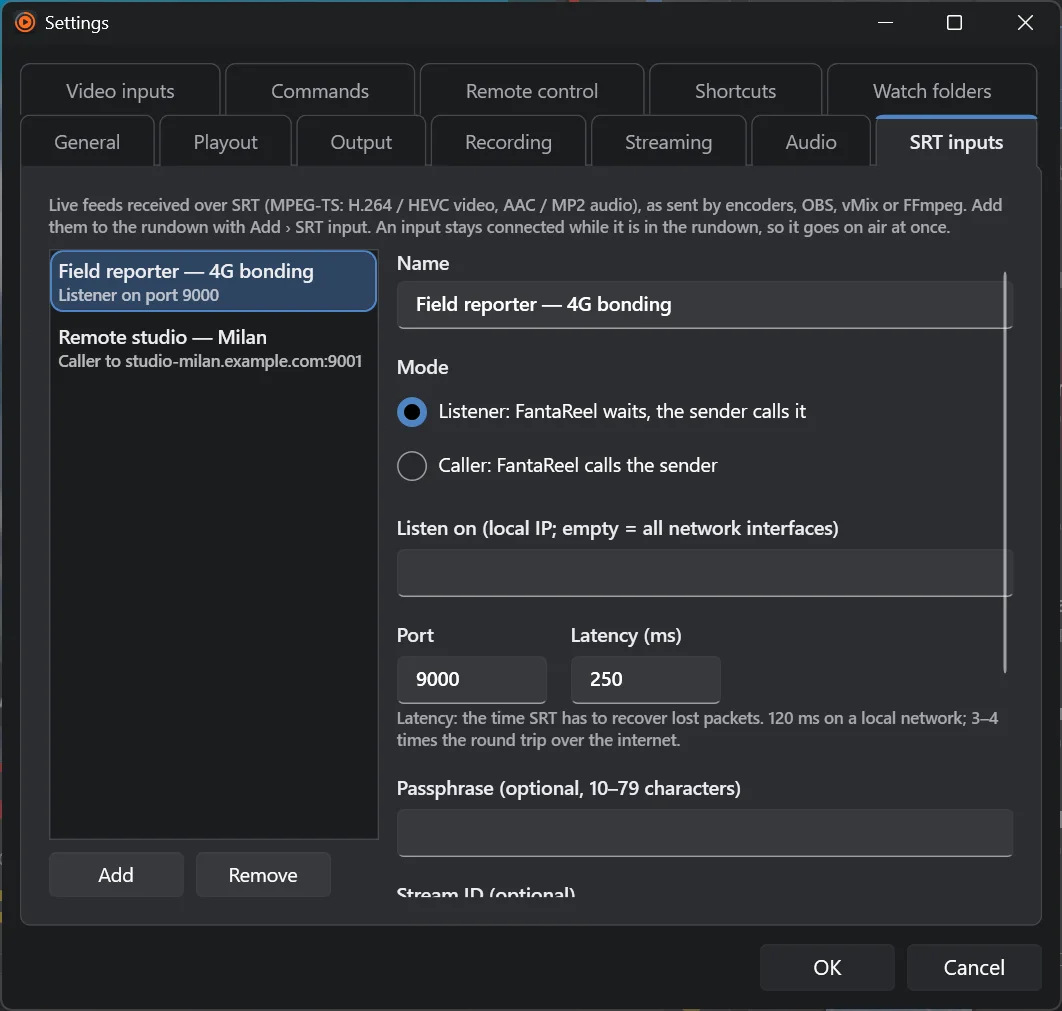
Settings › SRT inputs › Add: name, Listener (Fantareel waits, the sender calls it — set the port) or Caller (Fantareel calls the sender's address and port), latency (120 ms on a local network, 3–4 × the round trip on the Internet), passphrase (10–79 characters), stream ID, audio track (PID or language). Then Add element › SRT input › the input. One input can be in the rundown several times. The row shows LIVE / NO SIGNAL; a feed that drops holds its last picture for one second, then goes to black, and reconnects by itself.
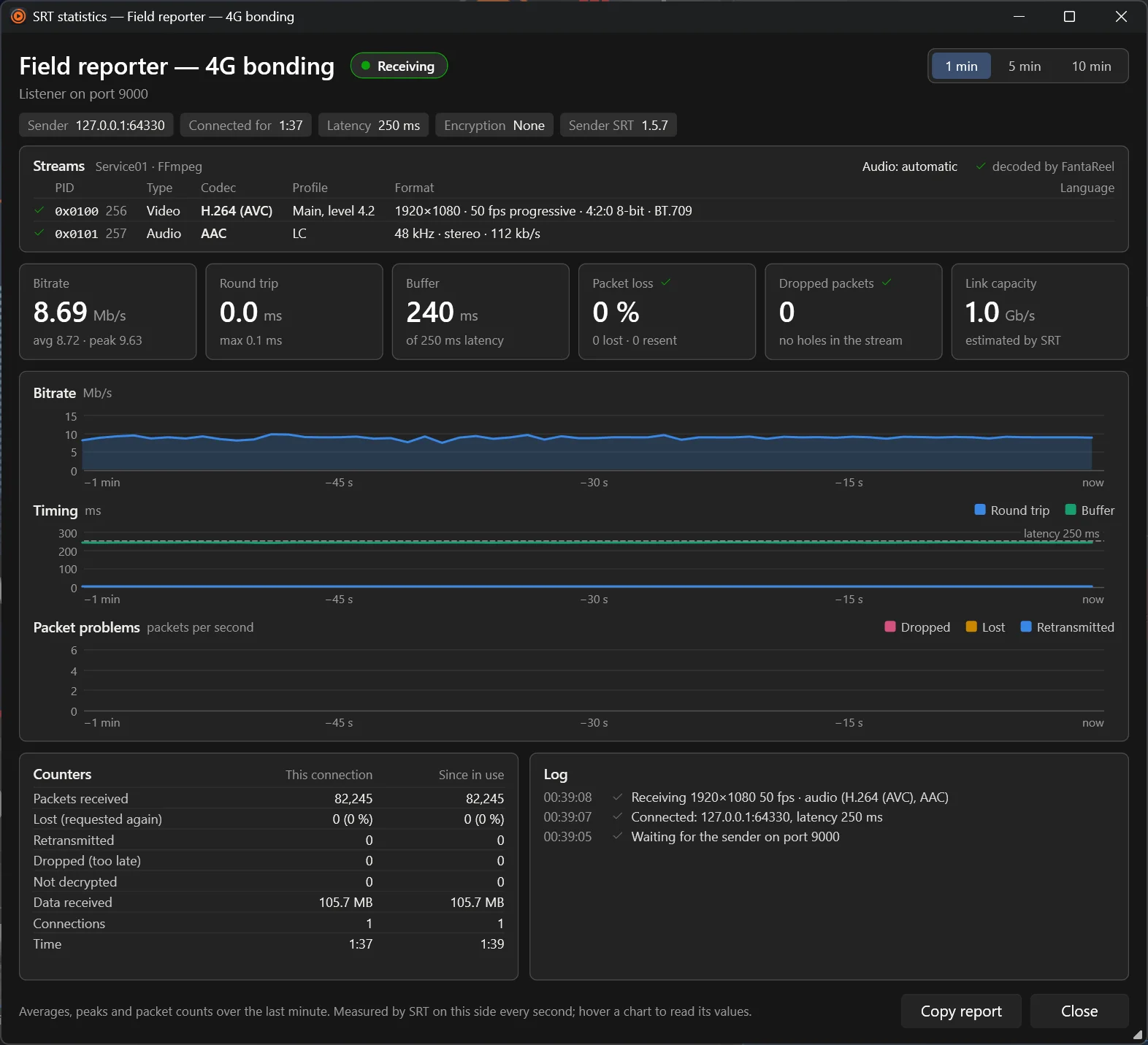
Right-click an SRT item › SRT statistics…: state, sender, connected time, latency, encryption; the streams of the feed (PID, codec, profile, format, language — Play this on an audio stream to choose it); bitrate, round trip, buffer, packet loss, dropped packets, link capacity; charts over 1, 5 or 10 minutes; counters and log. Copy report to send it to your provider.
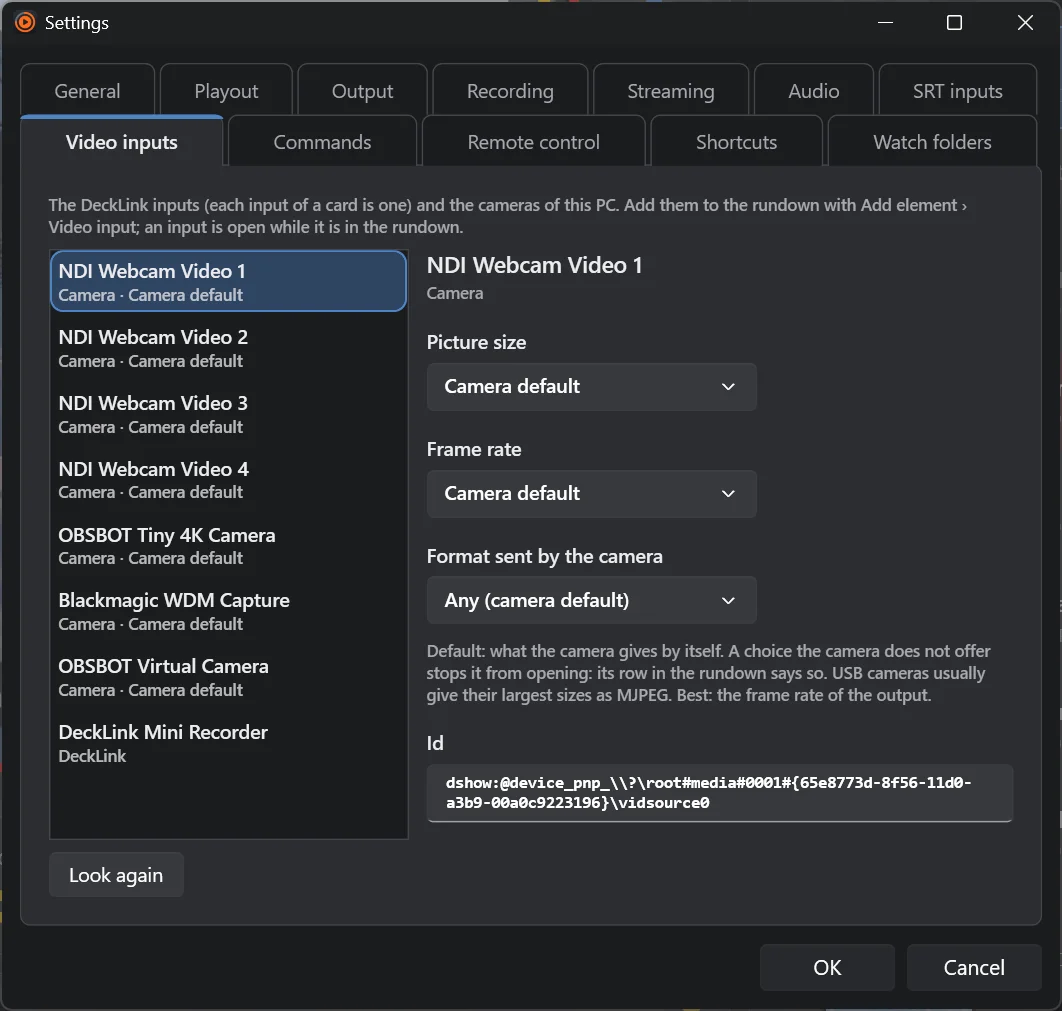
Add element › Video input ›: DeckLink inputs (Windows) and cameras. Add element › NDI® input ›: the NDI sources found on the network. Settings › Video inputs lists them; for a camera choose picture size, frame rate and format.
8. Cues and commands
User manual · select a topic to expand it
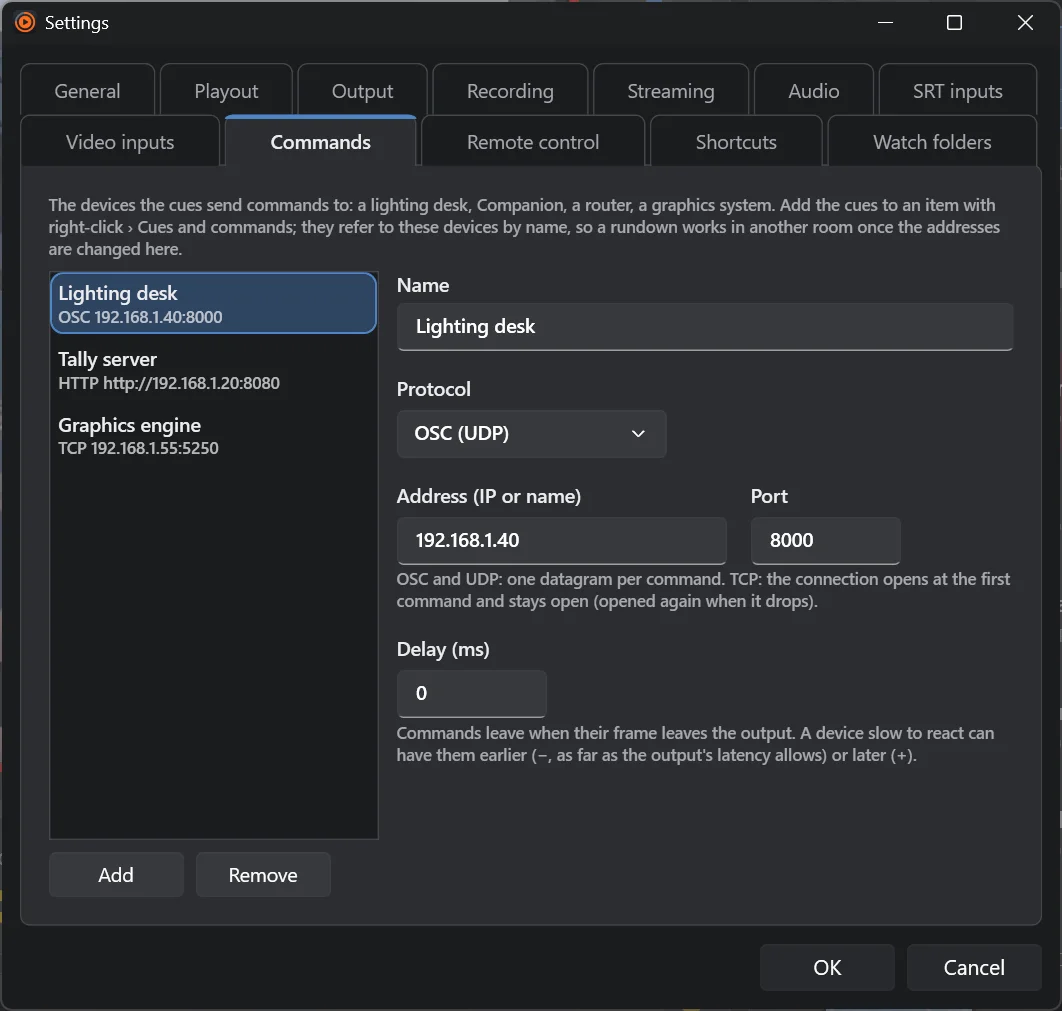
Settings › Commands › Add: name, protocol (UDP, TCP, OSC over UDP, HTTP / HTTPS), address and port (or base URL and headers for HTTP), and a delay in ms for slow devices.
Right-click an item › Cues and commands… (or its flag button).
- Add play cue at the playhead: its commands are sent and playback goes on.
- Add pause cue: playback stops on that frame (like Pause), then the commands are sent; optionally it resumes after n seconds.
- Item events ▾: On air, End, Off air.
- For each cue: a name, on / off, and its commands — device, message (OSC address and arguments, text with escapes \r \n \xHH, hex bytes, or HTTP method + path + body typed or read from a file) and Send now to test.
- Variables:
{item} {cue} {cuetime} {file} {rundown} {time} {date}. Times are timecode HH:MM:SS:FF in the file (or before the end). Cue marks appear under the program timeline.
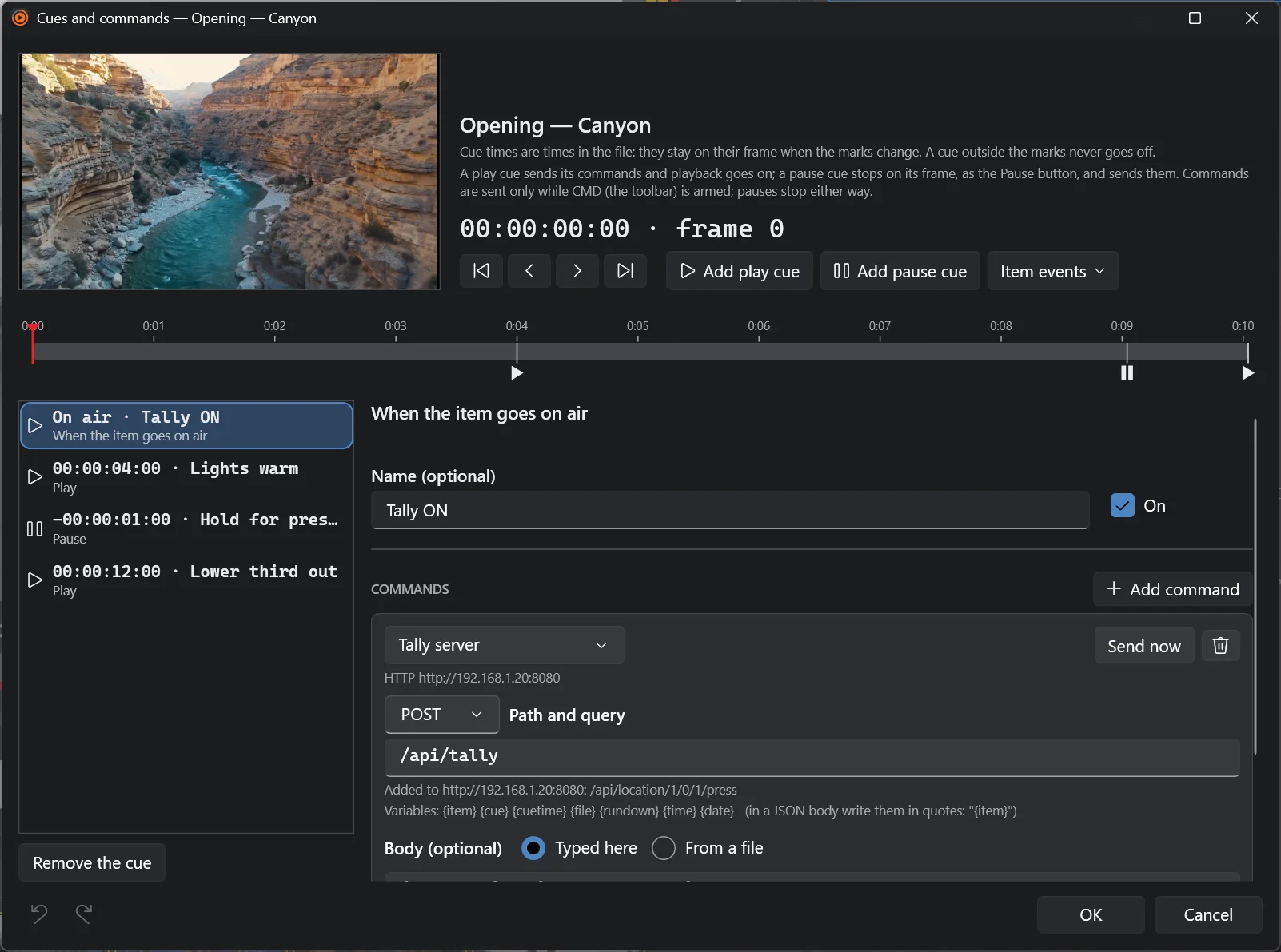
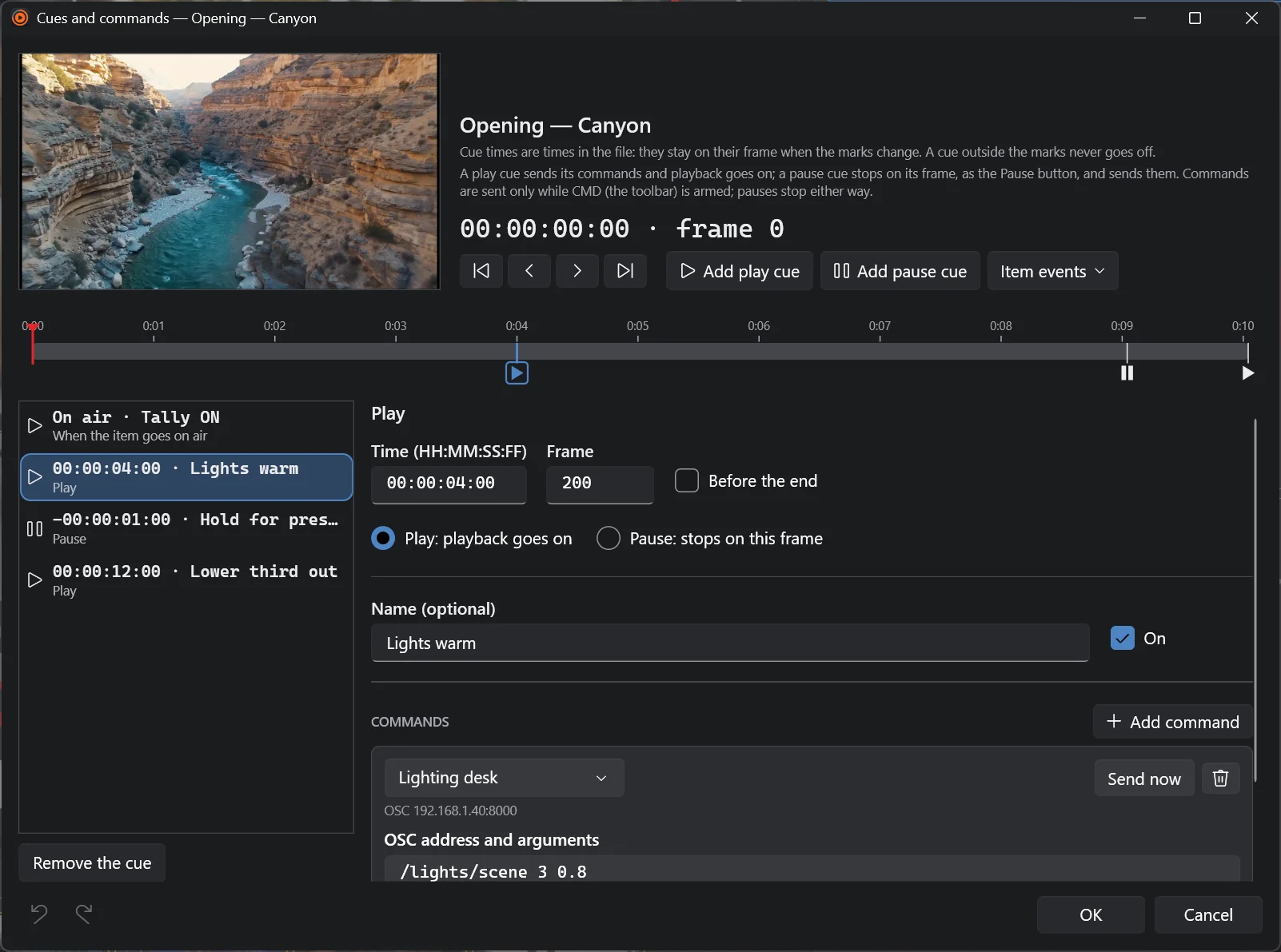
Commands are sent only while CMD (toolbar or Playout menu) is armed — off at start, so rehearsing never fires anything. Pause cues pause anyway. The result of the last command is in the status bar and in the log.
9. Outputs: NDI®, stream, recording
User manual · select a topic to expand it
Toolbar NDI (or Settings › Output): outlined while on; blue with "NDI · n" when n receivers are connected; red "NDI PGM" when a receiver has Fantareel on program (tally). Amber outline: it could not start — click to try again.
Settings › Streaming: caller (to the receiver's address and port) or listener; latency, passphrase, stream ID; encoding (H.264 / H.265, bitrate, CBR / VBR, keyframes, encoder) and audio (AAC, MP3, MP2, AC-3, Opus or PCM). Then the STREAM button: it shows LIVE, the time and the bitrate, and reconnects by itself.
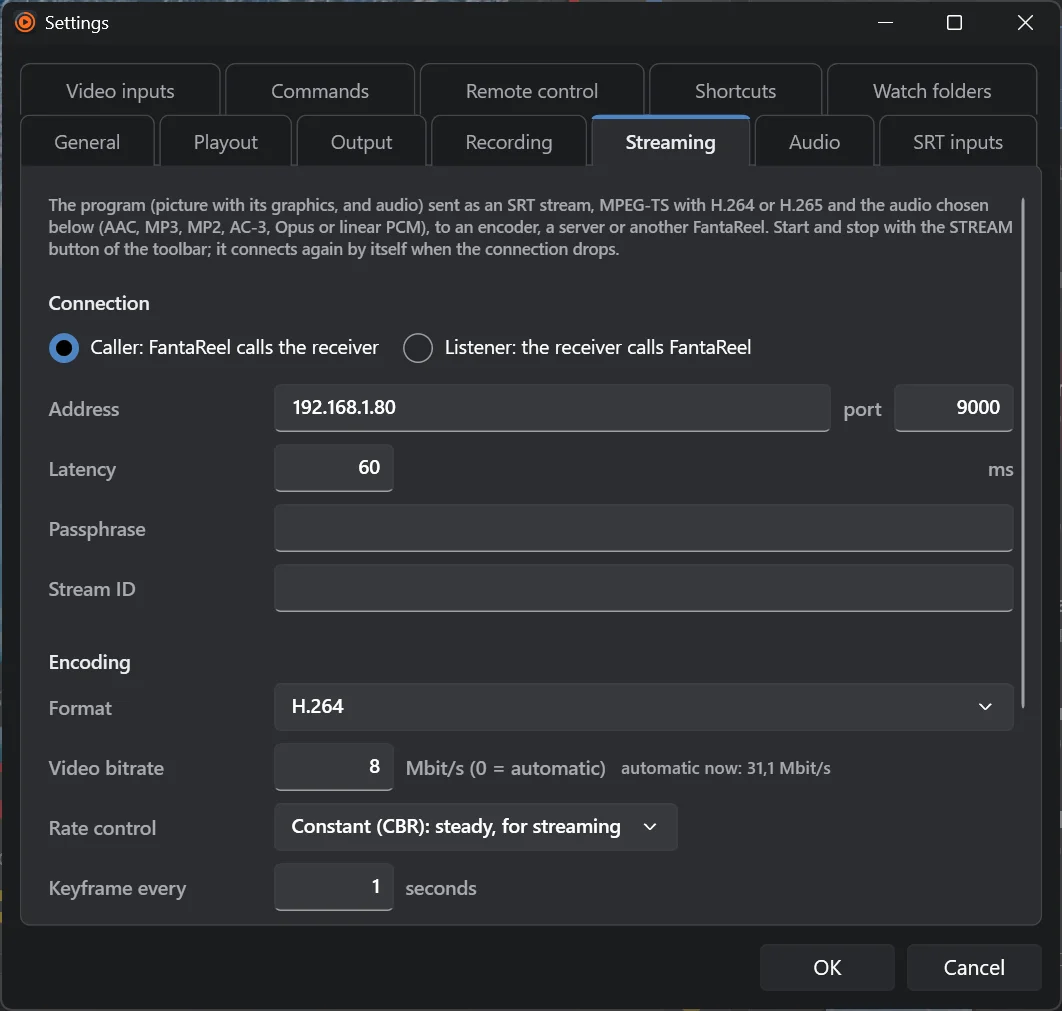

REC (Ctrl+Shift+R) records the program with graphics and audio. Settings › Recording: folder, format (H.264 / H.265 MP4, DNxHR LB / SQ / HQ MOV), bitrate, rate control, keyframes, encoder, speed / quality, audio. One file per recording, named with date and time.
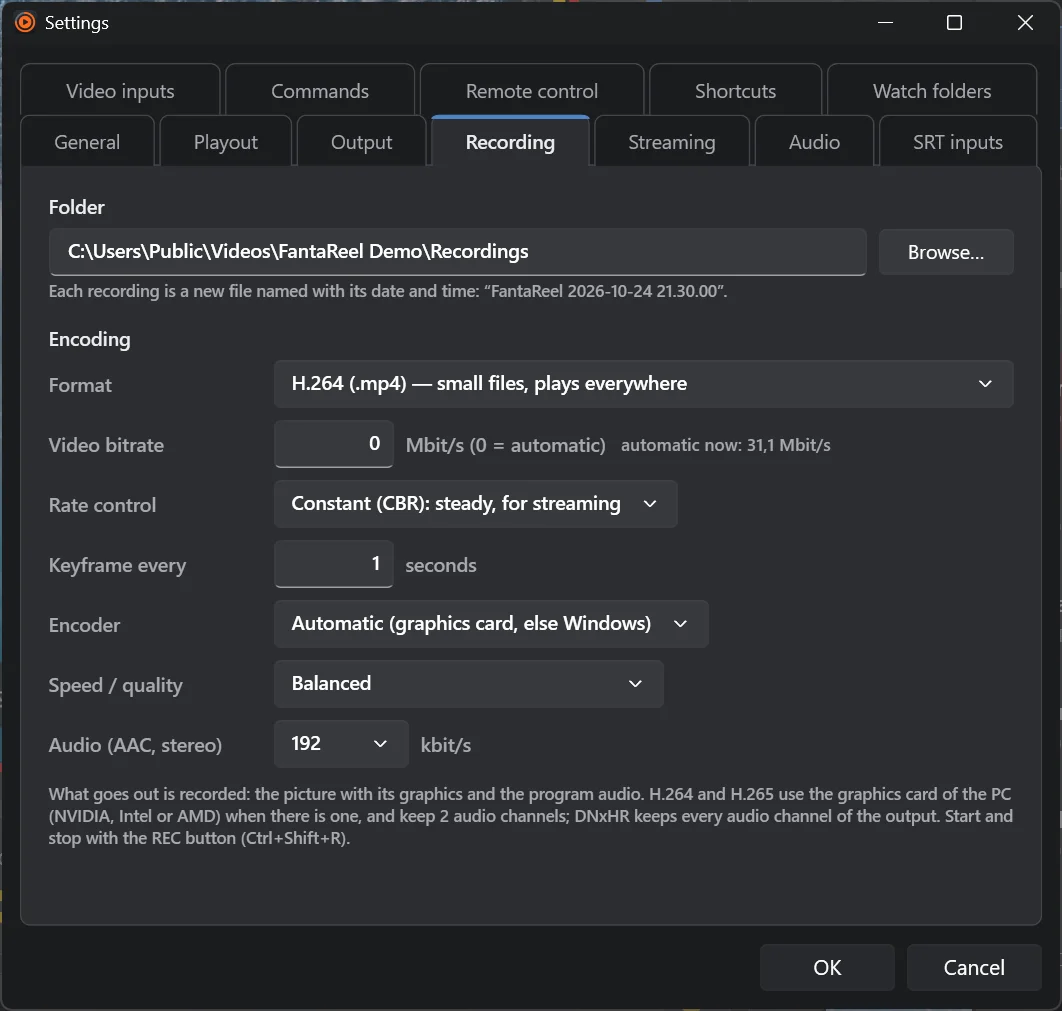
The ▾ next to REC: By hand, With the rundown (starts when the rundown plays — 3 s before a scheduled start — and stops after it goes to black or ends; one file per run), Between two times…, For a length of time…, Open the recordings folder. The REC button is outlined while automatic ("REC AUTO", "REC AT 18:00").

10. Timing and automation
User manual · select a topic to expand it
The clock button in the rundown header (or Playout › Schedule the start…): a time of day, today or tomorrow. A strip counts down (red in the last 10 s); at that time, on the frame, the rundown starts from the top with every item planned.

Right-click an item › Start in time…: the item goes on air by itself at that time of day, every day, while the output runs; then the rundown goes on from it. A clock badge marks it.
The Once button of the rundown header (or Playout › Play the rundown): once, n times or in a loop. After the last item, Next starts again from the first item not skipped.
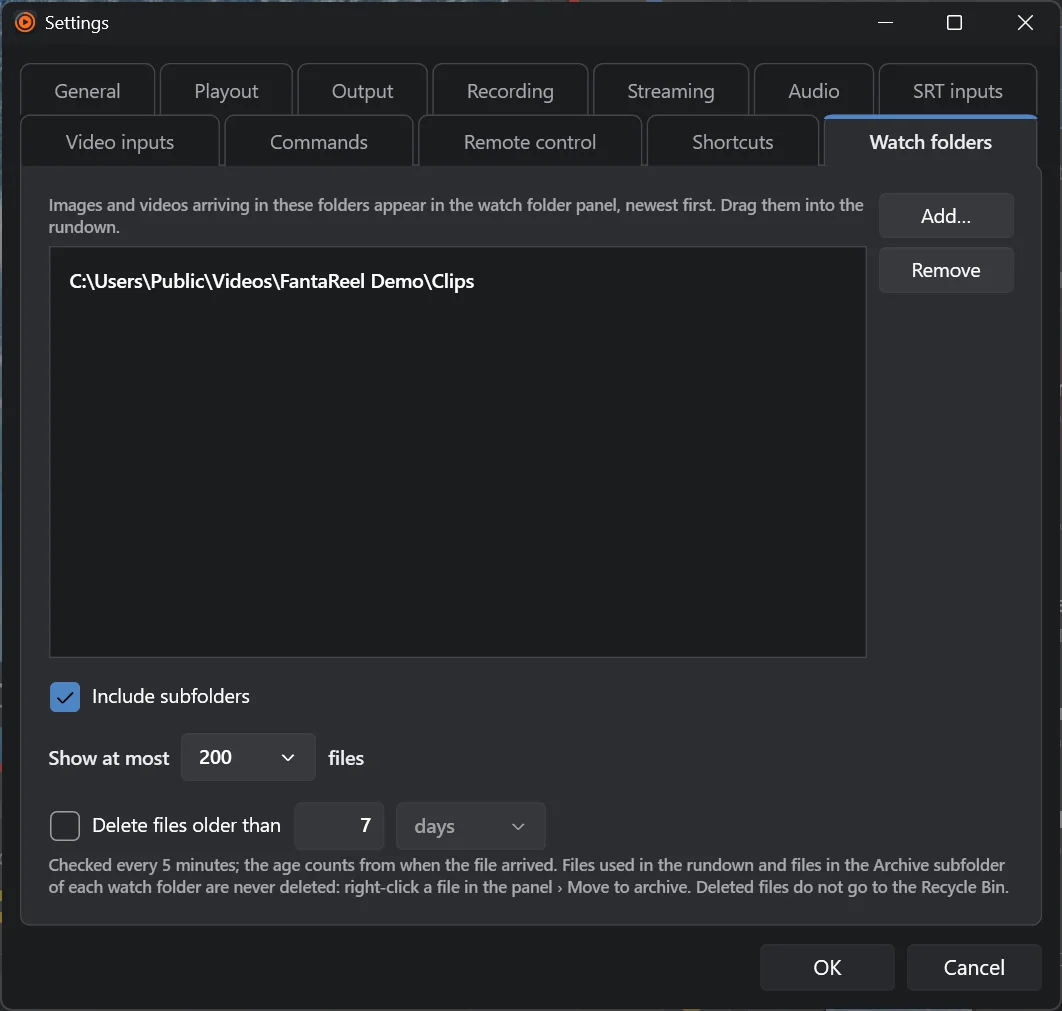
Settings › Watch folders › Add…: new files show up in the browser as soon as they are completely copied, marked
NEW for 5 minutes, newest first under New arrivals. Optional clean-up of files older than n days (files in the
rundown are never touched). Right-click a file › Move to archive moves it to the Archive subfolder.
11. The file browser
User manual · select a topic to expand it
Folder tree (watch folders, favourites — the star —, quick access, drives); details, list or thumbnail view; filter; drag to the rundown or onto the program. While the browser has the focus, the arrow keys, Enter and Delete work in the browser and never run Next on air.
12. Remote control
User manual · select a topic to expand it
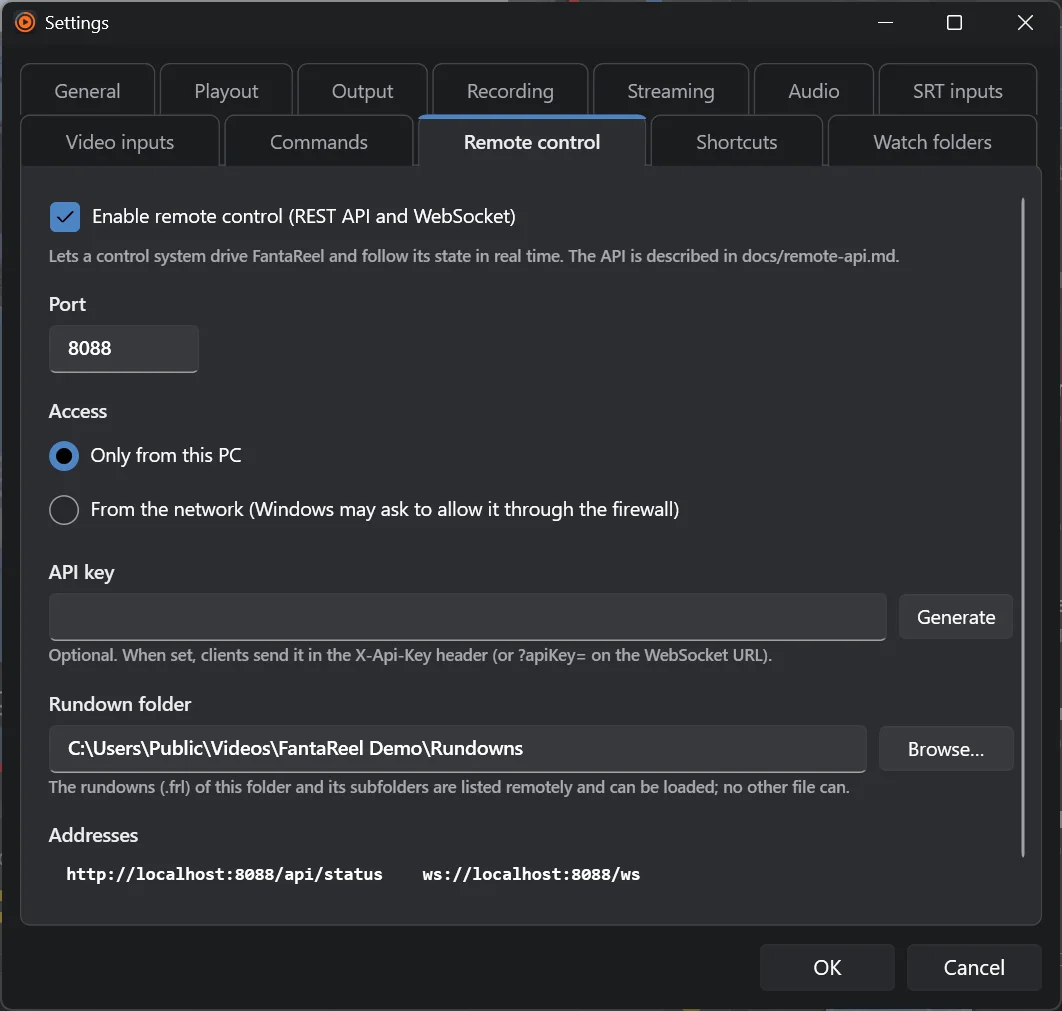
Settings › Remote control: enable it, choose the port (8088), Only from this PC or From the network, an optional API key, and the rundown folder (the only folder remote clients may load rundowns from). The addresses to use are listed there. See the Fantacore integration for what a controller can do.
13. Shortcuts
User manual · select a topic to expand it
Settings › Shortcuts (F1 opens it): every action with up to three keys; click a box and press the keys. A key already used elsewhere moves to the new action. Reset all to defaults. On a Mac, Ctrl is ⌘.
Defaults worth knowing: Space / → / Page Down next · ← / Page Up previous · Enter take selected · P play / pause · Home back to start · , . one frame · Ctrl+B black · Ctrl+Shift+R record · K skip · L loop · F framing · G graphics · T display time · F2 rename · Ctrl+I add media · Ctrl+Z / Y undo / redo.

14. Settings reference (one line each)
User manual · select a topic to expand it
- General — rundown style, click action, reopen last rundown, anonymous usage statistics, theme.
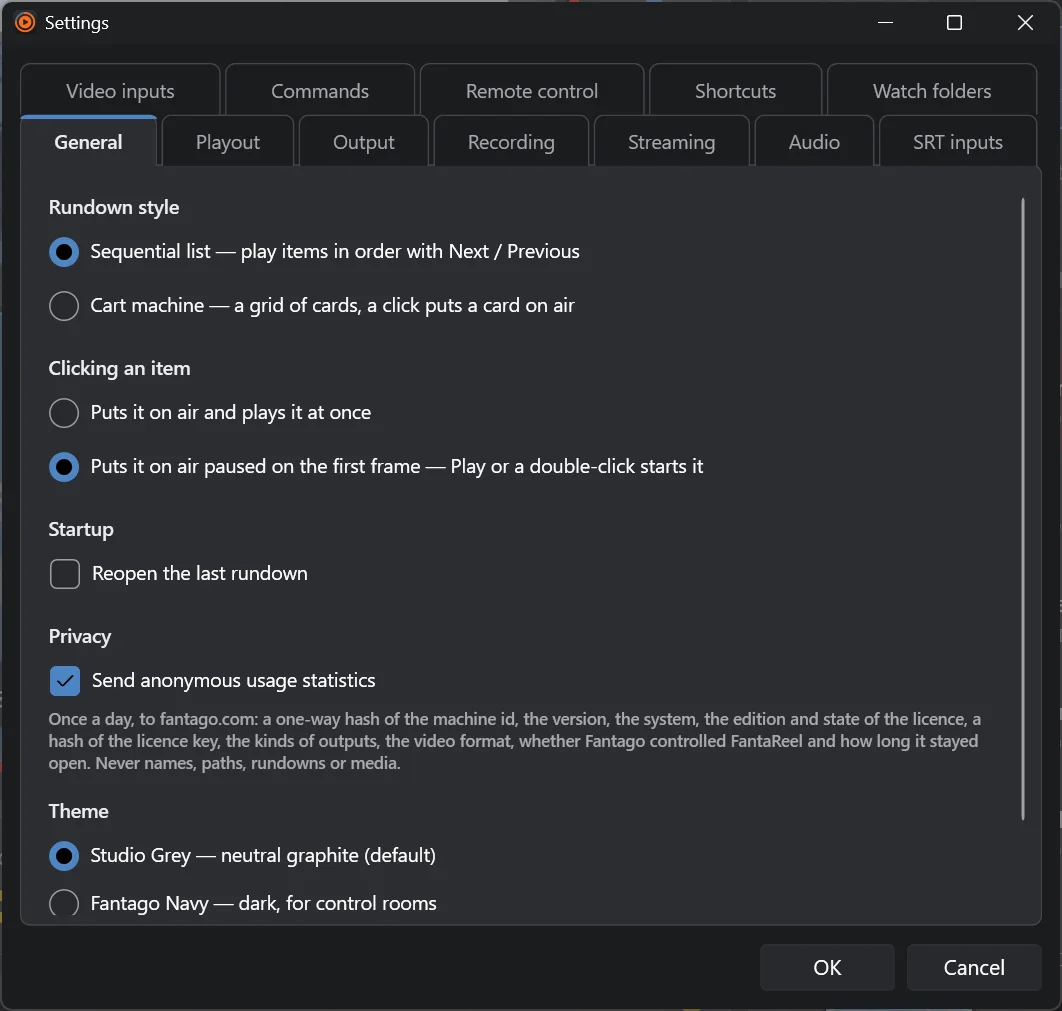
- Playout — end action of new clips, display time of new images, default transition.

- Output — device, format, embedded channels, screen output, NDI®.
- Recording, Streaming, Audio, SRT inputs, Video inputs, Commands, Remote control,
Shortcuts, Watch folders — see the chapters above.
Settings live in
%AppData%\Fantago\FantaReel\settings.json(Windows); Help › About shows the folder on any system.
15. Licence and updates
User manual · select a topic to expand it
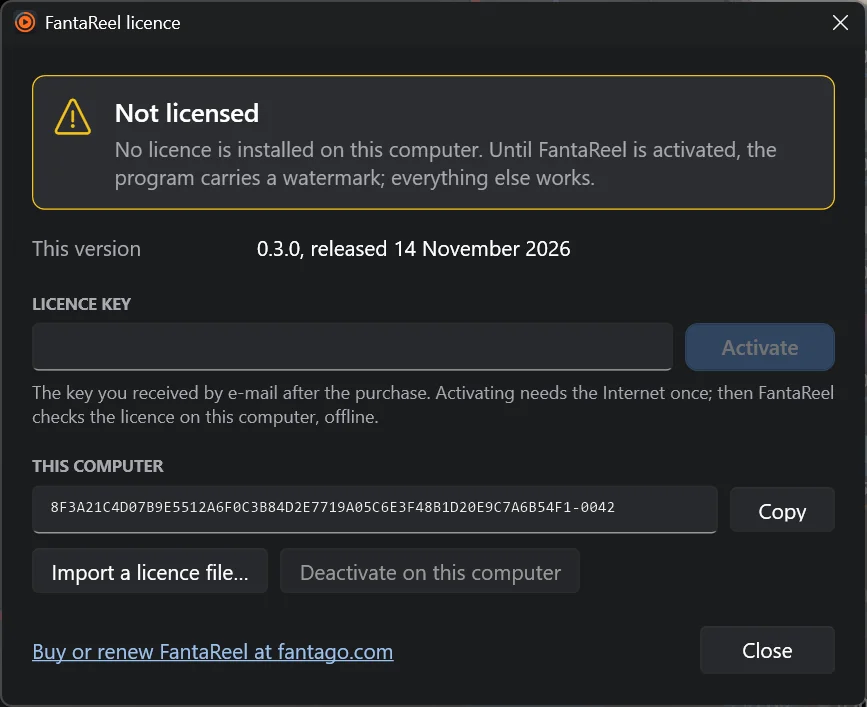
- Help › Licence…: paste the key, Activate (Internet needed once). Import a licence file… for computers that are never online (we send you the file). Deactivate on this computer to move the licence.
- Help › Check for updates…: Fantareel checks 30 s after start and once a day; it downloads the update on request, checks it, and installs it when you say so — it asks first if you are on air, recording or streaming, and reopens your rundown afterwards.
16. Troubleshooting
User manual · select a topic to expand it
- SmartScreen / Smart App Control blocks the setup or a component — More info › Run anyway; if Smart App Control blocks Fantareel at start-up it says so in words: turn Smart App Control off or wait for the signed release.
- No DeckLink in Settings › Output — install / update Desktop Video and restart; check the card in Blackmagic Desktop Video Setup.
- The NDI button is amber — another program may hold the NDI name, or the network blocks it; click to try again.
- An SRT feed stays NO SIGNAL — listener: is the sender calling the right address and port, is the firewall open? caller: is the address right? Same passphrase on both sides? Open SRT statistics and read the log.
- No sound on the sound card — Settings › Audio: the device, and the ASIO output pair.
- Commands are "not sent" — arm CMD.
- Anything else — Help › About shows the version and the settings folder; send us the log of the day from its
logsfolder (support@fantago.com).
General
Frequently asked questions · select a question to expand it
A playout engine: a rundown of clips, images, audio, live feeds and graphics, taken to air one after the other (or in any order) to a DeckLink SDI output, NDI®, an SRT stream, a monitor and a recording — all at the same time.
Broadcast galleries, live events, theatres and concerts, conferences, churches, sports venues, streamers — anyone who plays media to air live and needs it to be frame-accurate and predictable.
No. Without a card Fantareel runs on its own software clock and sends the program to NDI®, SRT, a screen and a recording. With a DeckLink card (Windows) you also get SDI on the card's hardware clock.
For many shows, yes: transitions, graphics, live inputs and audio are inside. In a bigger gallery it is the clip and graphics source feeding your mixer through SDI or NDI®.
Both are made by Fantago. Fantareel runs on its own; with Fantacore you drive it from Stream Deck keys and touch panels and put it in your sequences.
Rundown & playout
Frequently asked questions · select a question to expand it
Practically anything FFmpeg reads: MP4, MOV, MXF, MKV, AVI, TS… with H.264, H.265, ProRes, DNxHR, MPEG-2, VP9, AV1; images JPEG, PNG, TIFF, BMP, GIF, WebP; audio MP3, WAV, AIFF, FLAC, AAC / M4A, OGG, Opus, WMA, AC-3, MP2.
Yes, it is converted to the output format; images and clips can be framed (fit, fill, custom).
Settings › General › Clicking an item › Puts it on air paused on the first frame. Or Playout › Back to the start (ready).
No, by design: there is one program. Rehearse items on the output before the show; their volume, marks and loop are saved in the item.
Volume, loop, end action, framing and graphics apply at once. Marks apply from the next start of the clip.
The item cannot be taken and the previous one stays on air; the row tells you why.
Graphics
Frequently asked questions · select a question to expand it
Yes: a PNG with alpha, or an animated logo as ProRes 4444 / QuickTime Animation with alpha.
Item graphics belong to one item (a name strap on an interview). Rundown graphics live over the whole show (logo, clock, crawl) and are switched from the GRAPHICS bar.
Yes — SDI, NDI®, stream, screen and recording all get the program with its graphics.
Audio
Frequently asked questions · select a question to expand it
Yes, with the audio bed (the button after Play / Pause): mixed with the items or alone, looped, with its own level.
Yes: Settings › Audio › Also send the program audio to a sound card (WASAPI or ASIO on Windows, Core Audio on a Mac). It is kept in step with the video and can be delayed to match.
Live inputs & outputs
Frequently asked questions · select a question to expand it
Yes — any SRT sender with MPEG-TS, H.264 / HEVC video and AAC / MP2 audio. Fantareel can be the listener or the caller.
Right-click the SRT item › SRT statistics: bitrate, round trip, buffer against latency, lost and retransmitted packets, over 10 minutes.
Fantareel streams SRT. Send it to an encoder, a cloud service or a server that takes SRT (many CDNs accept SRT ingest) — or to OBS / vMix for RTMP.
Yes, and send SDI, NDI® and the screen too.
Automation & cues
Frequently asked questions · select a question to expand it
Yes: schedule the start (a time of day), or give items a Start in time. Recording can follow the rundown.
Anything that takes OSC, UDP, TCP or HTTP: lighting desks, Companion, QLab, Resolume, tally systems, routers, CasparCG and other graphics engines, home-made scripts.
CMD must be armed (it is off when Fantareel starts so rehearsals fire nothing). Cues fire only when playback crosses their frame — not on a seek — and never outside the marks.
Licence & purchase
Frequently asked questions · select a question to expand it
No. Every feature works for ever; the program carries a watermark until you activate a licence.
Write to us with the machine id shown in Help › Licence: we send you a licence file to import.
Never. The licence is checked when Fantareel starts; at worst the watermark comes back at the next start.
Installation & updates
Frequently asked questions · select a question to expand it
The installer is new and not yet code-signed: More info › Run anyway.
Fantareel checks once a day and shows an UPDATE badge. You choose when to download and install; it asks first if you are on air, recording or streaming, then reopens your rundown.
Windows: %AppData%\Fantago\FantaReel (settings.json and the logs folder). Help › About shows the folder on any system.
Yes. Only one DeckLink output can be used by one program at a time.
Privacy
Frequently asked questions · select a question to expand it
Activation and licence renewals (the licence key and a machine id), the update check, and — unless you switch it off in Settings › General — anonymous usage statistics once a day: a one-way hash of the machine id, the version, the system, the edition, the kinds of outputs used and the video format. Never names, paths, rundowns or media.