

Everything Fantareel does
One window, one program, every output. Below is the complete list — grouped the way an operator thinks: build the show, play it, dress it, feed it, send it out, automate it, control it from elsewhere.
Build the showThe rundown
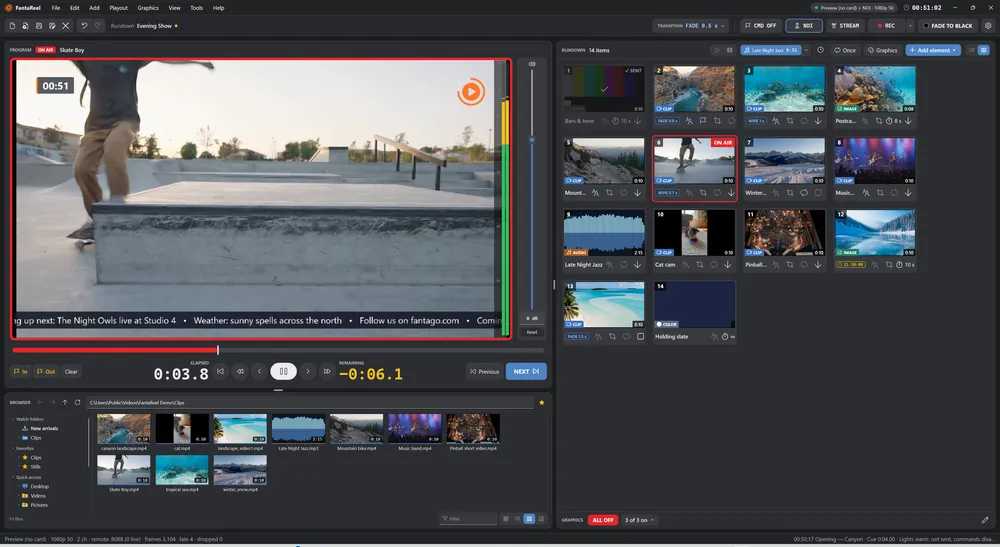
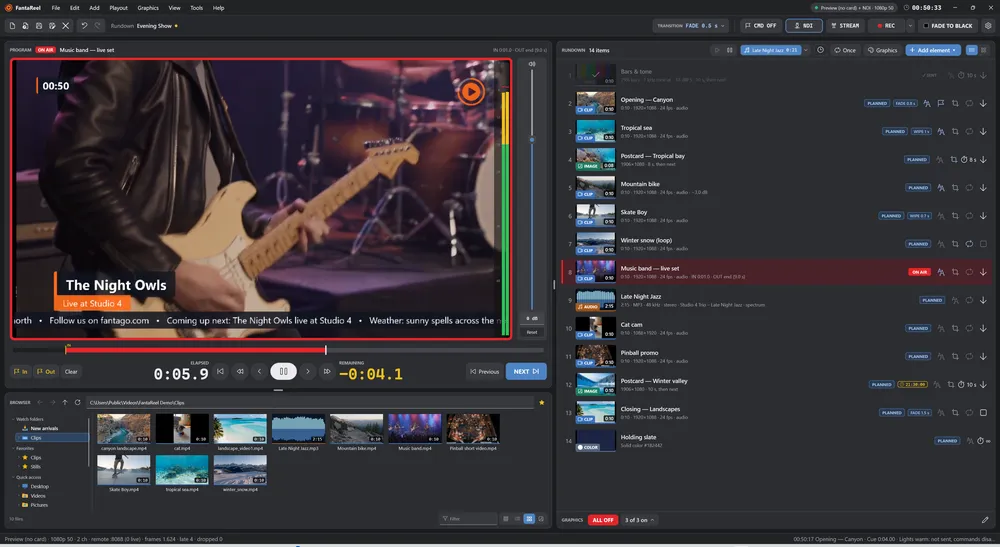
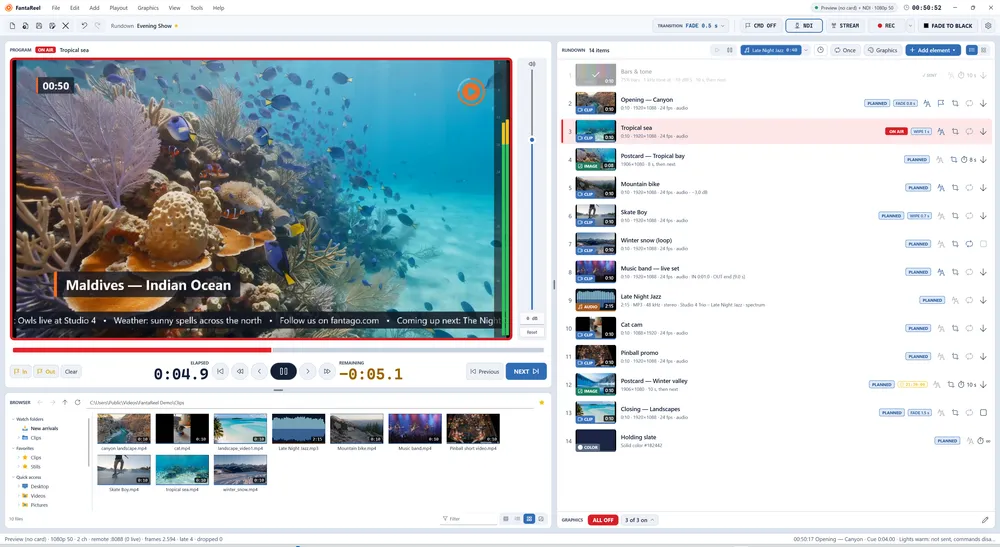
- List or cart machine. Play items in order with Next / Previous, or as a wall of cards where a click puts a card on air. Switch at any time.
- Every kind of media. Video clips, still images, audio files, solid colours, colour bars with tone, live SRT feeds, DeckLink inputs, USB / DirectShow cameras and NDI® sources.
- Per-item settings, saved in the rundown. Loop, mark in / out, level in dB, display time for stills, what happens at the end (hold the last frame, go to black, take the next item) and the transition into the item.
- Status at a glance. Planned, on air, sent and skipped badges. Sent rows step back; skipped items are passed over by Next. The item on air always comes to the third row of the list.
- Multi-selection. Ctrl / Shift + click, then cut, copy, paste, duplicate, move, drag, loop or change the transition of all the selected items together.
- Copy and paste parameters. The settings of one item onto many — all of them or just the graphics, the framing, the transition, the playback or the audio.
- Undo / redo everywhere. 200 steps in the rundown and in every editor (graphics, framing, cues).
- Rundown files (
.frl, JSON) with their graphics, audio bed and repeat; recent rundowns; reopen the last one at start-up.

Play itPlayout
- Frame-accurate takes on the output's own clock (the DeckLink hardware clock, or a software clock without a card).
- Preloaded clips. The first frames of every clip are already in memory: a take never waits for the disk.
- Transport. Play, pause, back to the start, one frame and one second back or forward, seek on the timeline, restart paused and ready.
- Counters of elapsed and remaining time, large enough to read from across the desk.
- Volume fader and peak meter of the item on air, typed in dB or moved with the mouse wheel.
- Rehearse on the output. There is no separate preview channel: play the item, adjust volume, marks and loop where the audience will see them — and they are stored in the item.
- Fade to black in one click, of the transition's length.
Play itTransitions
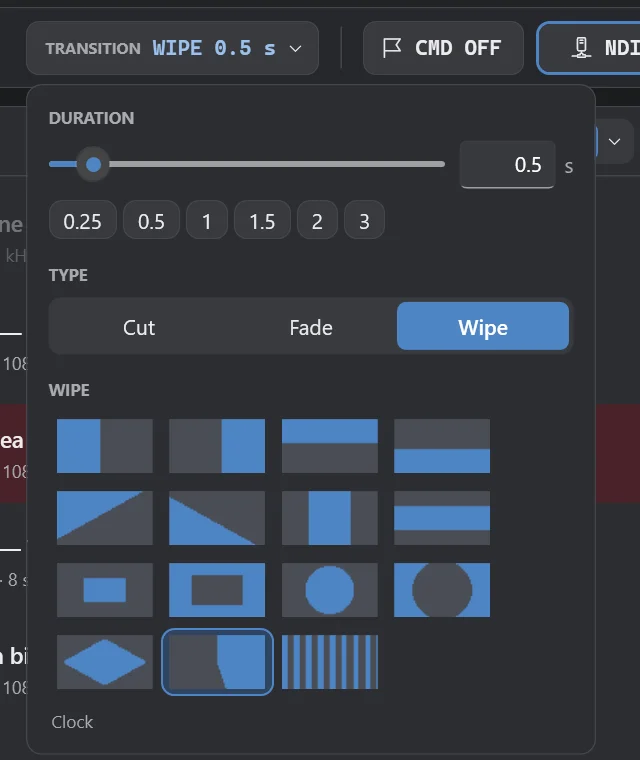
- Cut, fade and wipe, from 0.25 to several seconds.
- 15 wipe shapes: left / right / up / down, diagonals, barn doors, box in / out, circle in / out, diamond, clock and blinds — with a soft edge, computed per field for interlaced formats.
- A default transition for the toolbar, and each item can have its own.
Dress itImages and framing
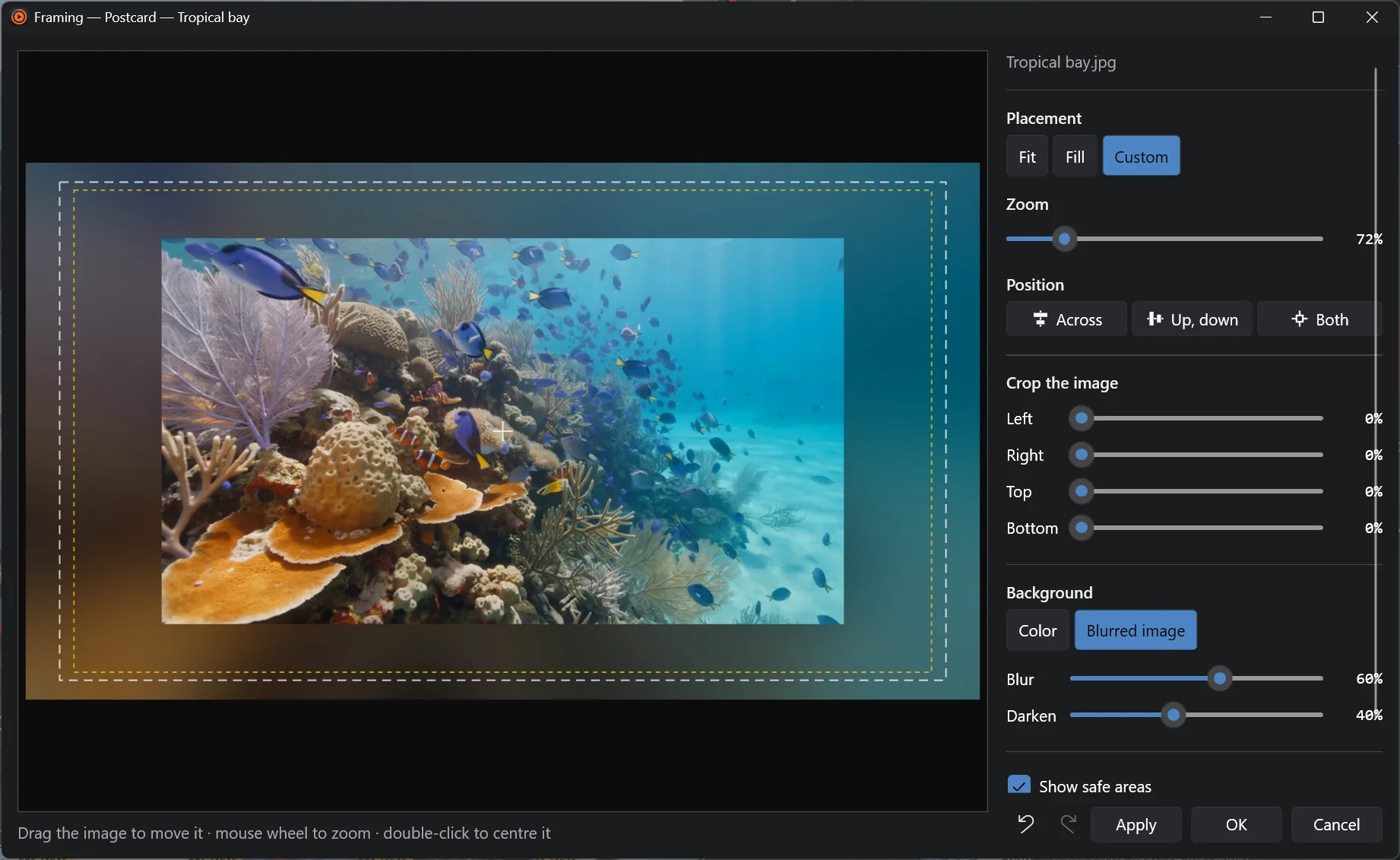
- Fit, fill or custom zoom and position, edge cropping, background colour.
- Blurred background of the image itself, with blur and darken amounts — perfect for portrait photos.
- Live on air. Change the framing while the image is on air; what you see in the editor is exactly the output.
- Safe areas shown while you frame.
Dress itGraphics
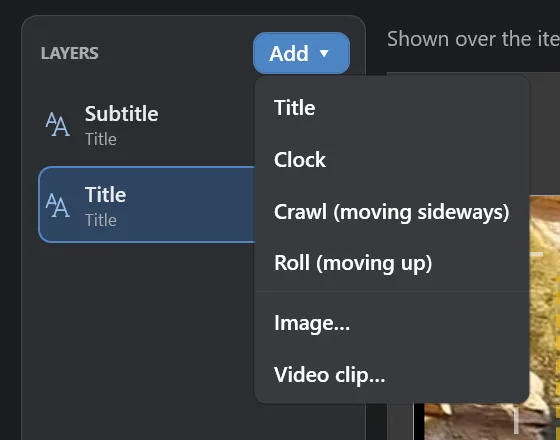
- Titles — one or more lines, any installed font, size, bold / italic / underline, colour, outline, soft shadow with colour, distance, direction and softness.
- Box behind the text with opacity, rounded corners, padding and a coloured accent bar.
- Clocks in any time format, crawls (sideways) and rolls (upwards) at the speed you choose.
- Images (PNG with transparency, JPEG…) and video clips with alpha (ProRes 4444, QuickTime Animation, PNG sequences in MOV…), played once, n times or forever, with edge cropping.
- WYSIWYG editor over a clean copy of the real program: drag to move, corner to size, double-click to type, nine-point anchor, align to the frame / safe area / selection, distribute, order, zoom, safe areas, undo.
- Fades in and out, per field.
- Item graphics come on and go off with the item; rundown graphics (logo, clock, crawl) are switched from the GRAPHICS bar — one by one or all at once — and can come on when the rundown opens.

Dress itAudio
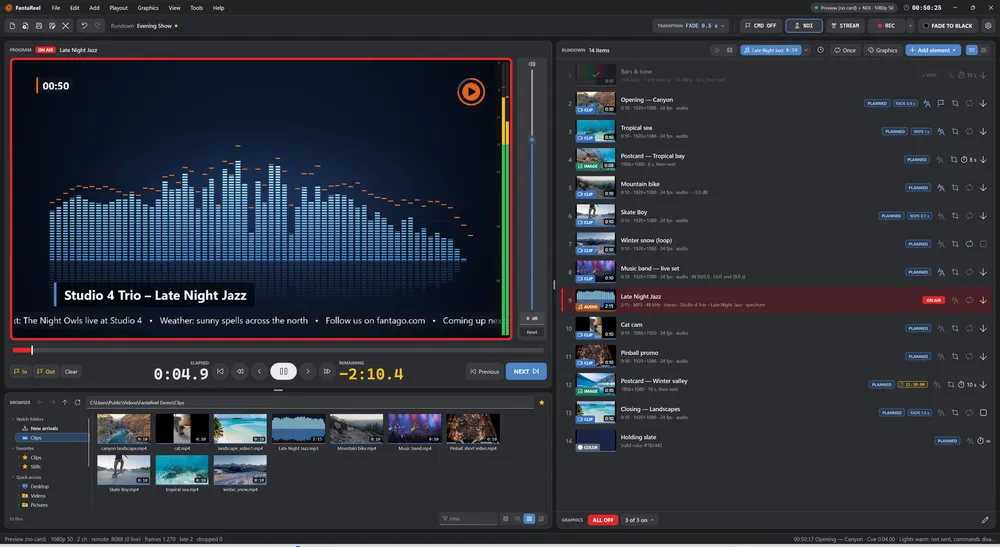
- Audio files as items — MP3, WAV, AIFF, FLAC, M4A / AAC, OGG, Opus, WMA, AC-3, MP2 — with marks, loop and end action like a clip.
- A picture for the radio moment: a live spectrum (64 bands, from the bass to the treble, with peak caps that hold and fall), a scrolling waveform or black — plus the track title as a lower third, read from the file's tags.
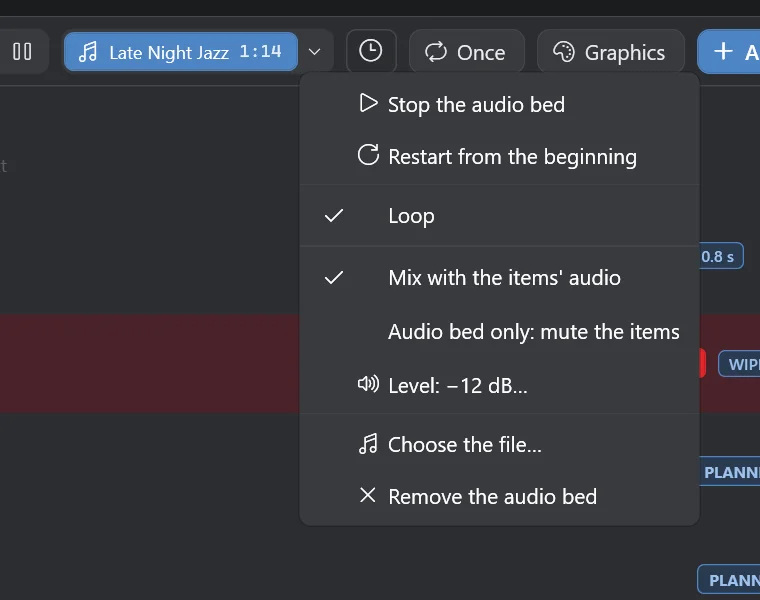
- Audio bed: one sound under the whole show, whatever is on air — even black. Mixed with the items, or bed only with the items faded out while it plays. Gapless loop, level in dB, smooth fades.
- Program audio embedded in SDI and/or sent to a sound card (WASAPI or ASIO on Windows, Core Audio on macOS), kept in step with the video clock and delayed to match the SDI latency.
Feed itLive inputs
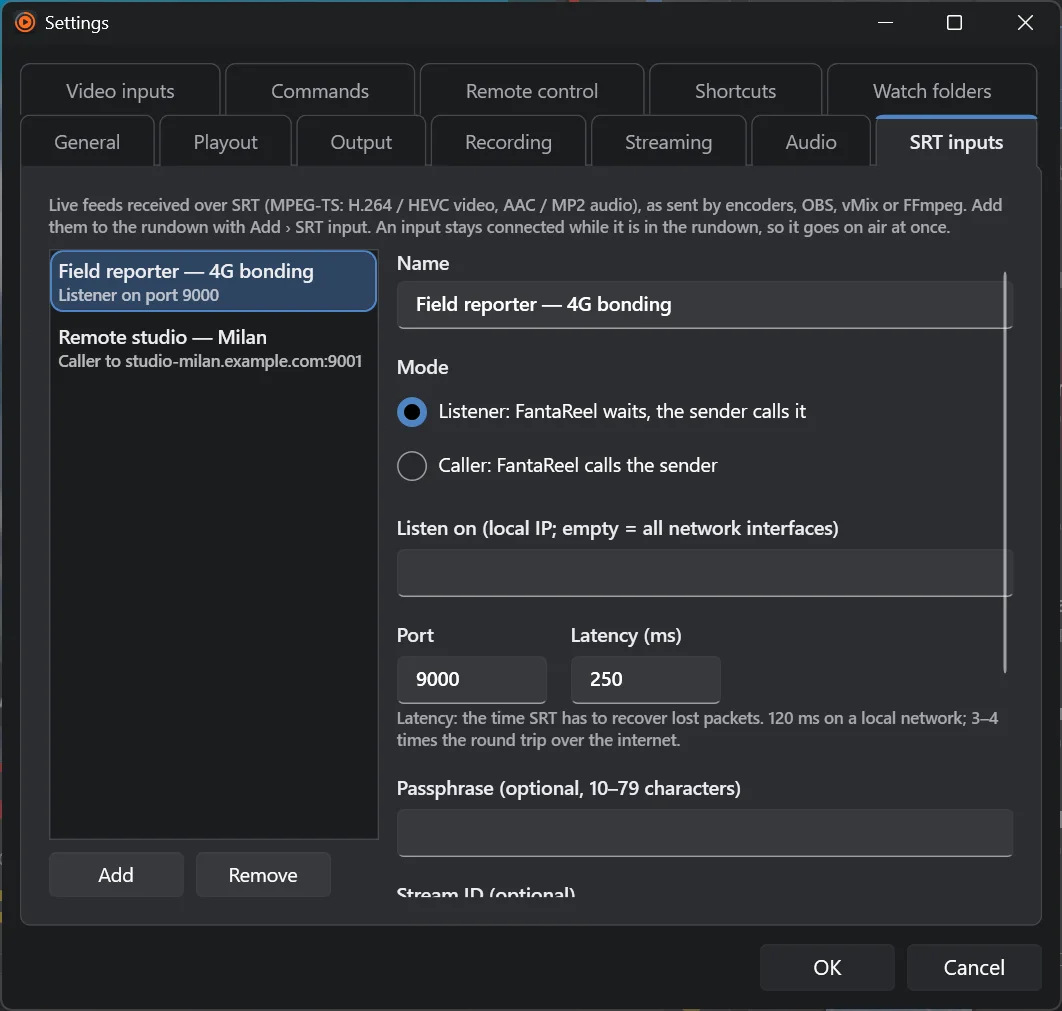
- SRT inputs — caller or listener, latency, passphrase (AES), stream ID; MPEG-TS with H.264 / HEVC and AAC / MP2. Choose the audio track by PID or language. Reconnects by itself.
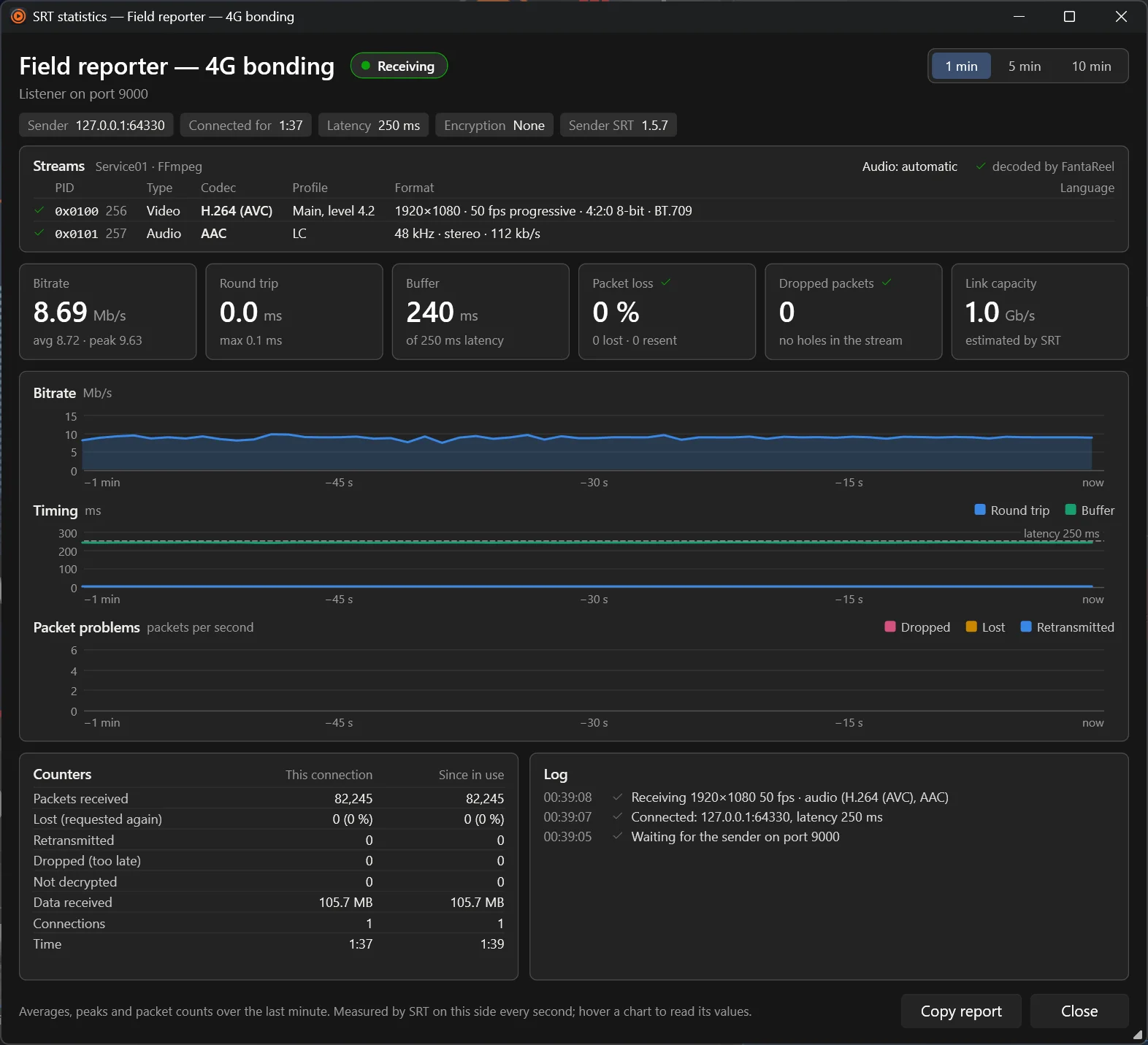
- SRT statistics for every feed: bitrate, round trip, buffer against latency, lost / retransmitted / dropped packets, 10 minutes of charts, totals, the list of elementary streams and an event log. Copy report for your provider.
- DeckLink inputs (every sub-device of a quad card) Windows
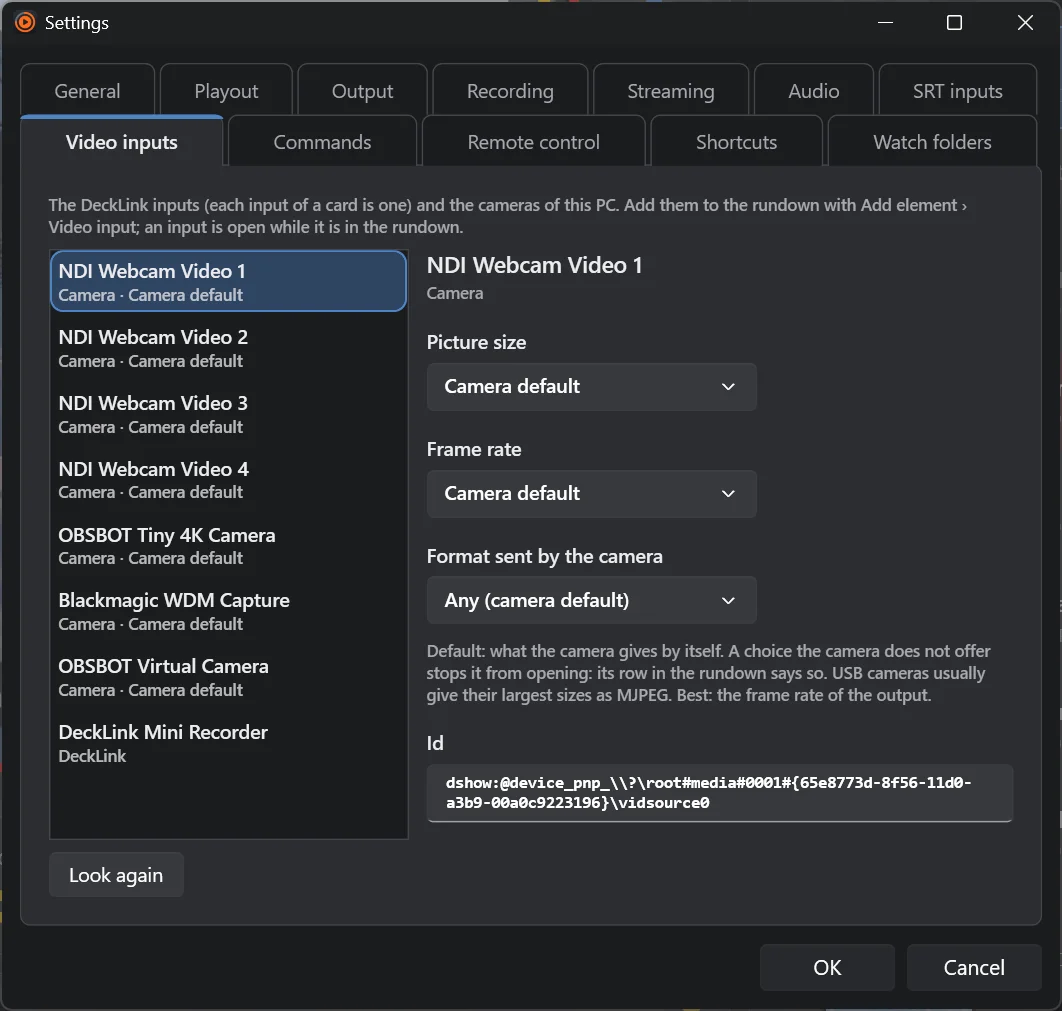
- Cameras — USB / DirectShow on Windows, AVFoundation on macOS — with size, frame rate and format of your choice.
- NDI® sources found on the network.
- Safe on air: a feed that drops holds its last picture for one second, then goes to black; rows show LIVE or NO SIGNAL.

Send it outOutputs — all at the same time
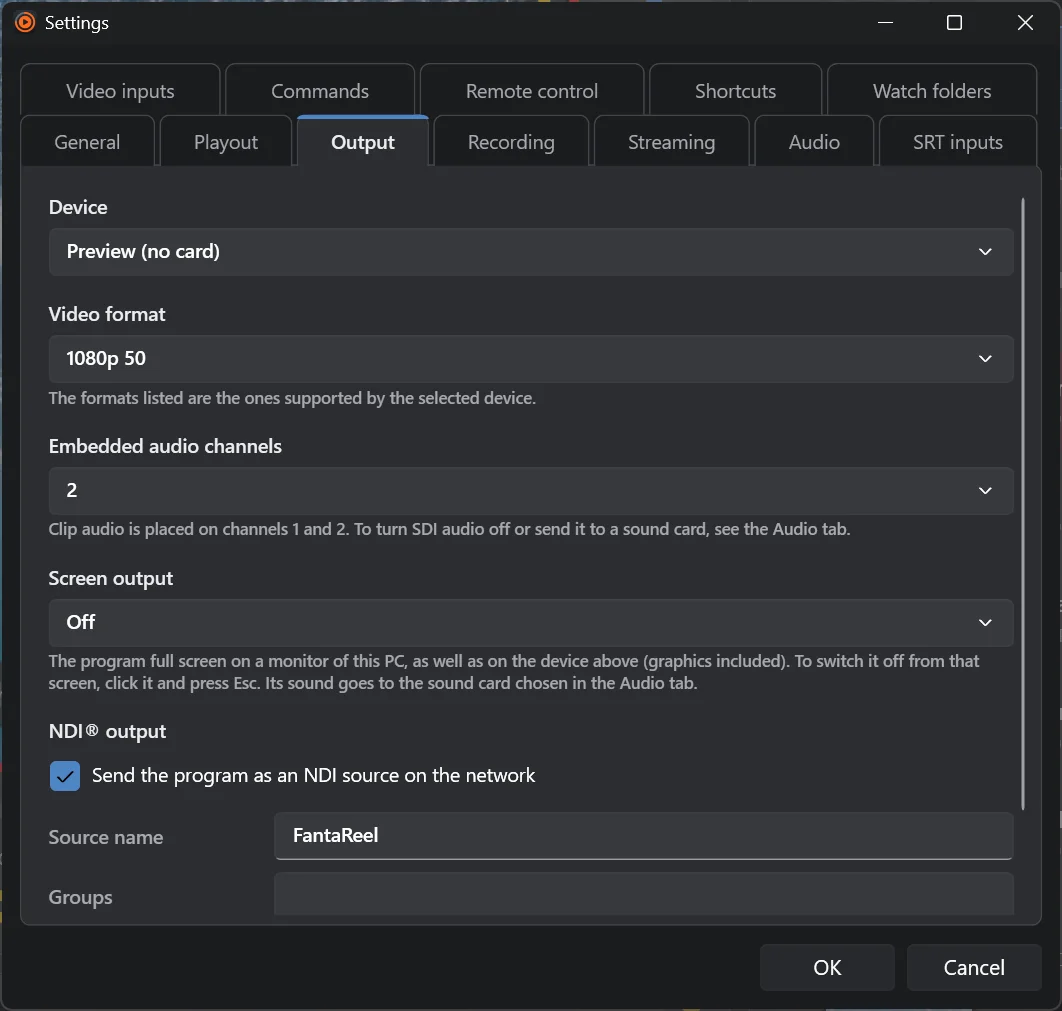
- Blackmagic DeckLink SDI — 720p50, 1080i50 / 59.94, 1080p25 / 29.97 / 50 / 59.94, 2160p25 / 50, with embedded audio (2, 8 or 16 channels) Windows
- Software clock when there is no card: everything else works the same.
- Full-screen output on any monitor of the PC (Esc on that screen switches it off).
- NDI® output with every audio channel, receiver count and tally (blue when watched, red when on program).
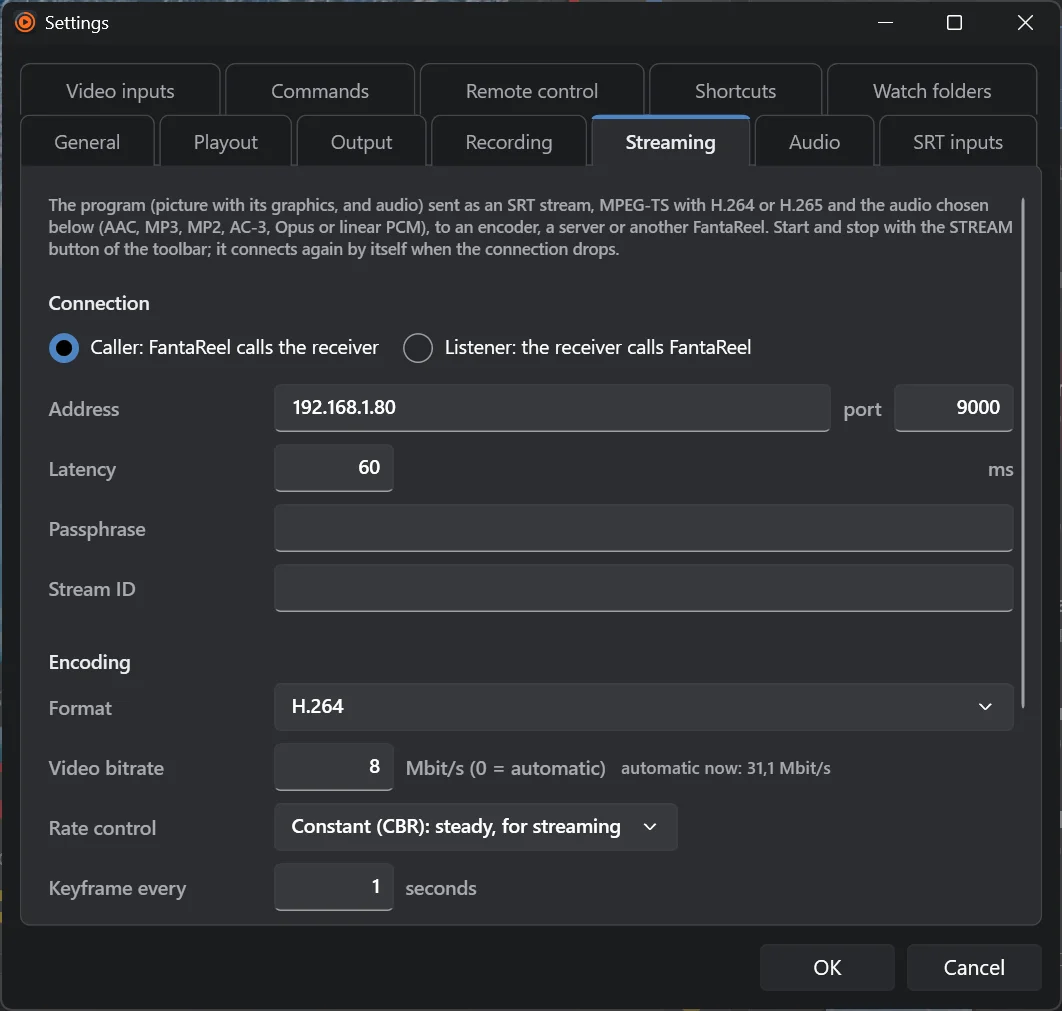
- SRT streaming — caller or listener, H.264 / H.265 with the hardware encoder (NVIDIA, Intel, AMD, Apple), audio in AAC, MP3, MP2, AC-3, Opus or 24-bit PCM (SMPTE 302M); reconnects by itself.
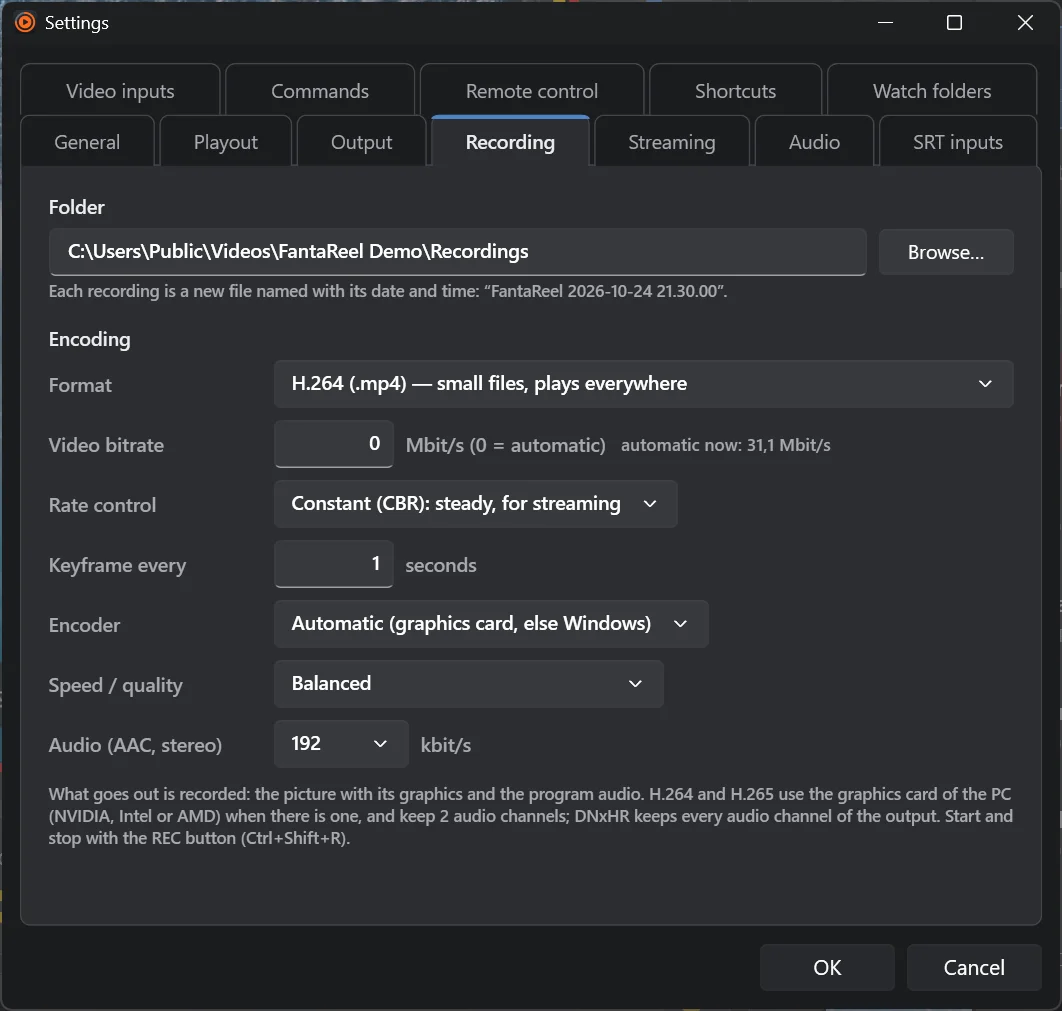
- Recording — H.264 / H.265 MP4 (fragmented: safe even if the PC stops) or DNxHR LB / SQ / HQ MOV with 24-bit PCM; bitrate, CBR / VBR, keyframes, encoder and quality of your choice.
- What goes out is the program with its graphics and audio — identical on every output.

Automate itAutomation and timing
- Scheduled start: the rundown starts from the top at a time of day, on the frame, with a countdown strip.
- Start in time: an item goes on air by itself at its time, every day.
- Repeat the rundown once, n times or in a loop.
- Recording on a schedule: with the rundown (it starts 3 s before a scheduled start and stops after the last item), between two times, or for a length of time.
- Watch folders: new files appear as soon as they are completely copied, marked NEW, newest first; optional clean-up of old files and a "Move to archive" that never deletes.


Automate itCues and commands
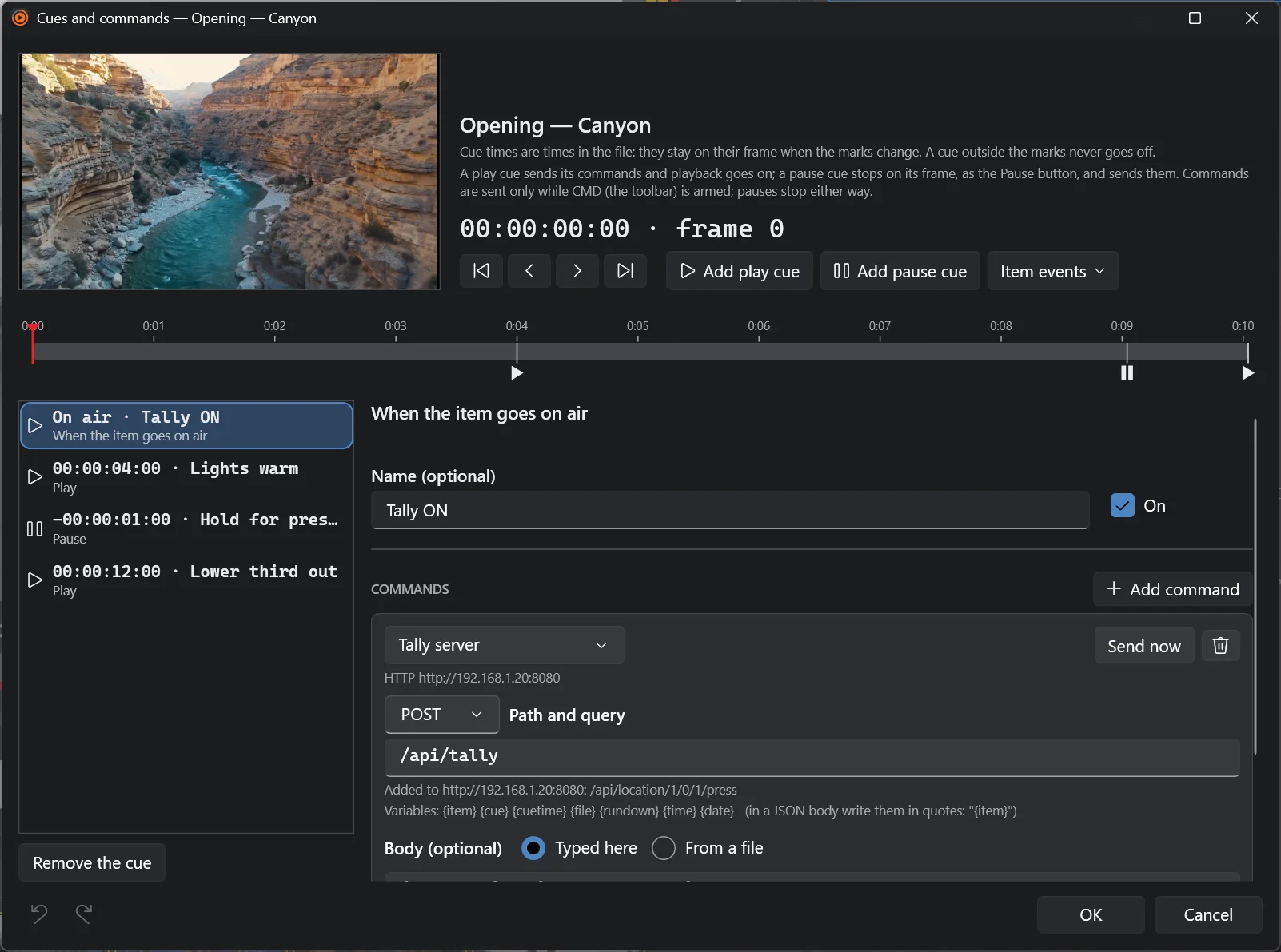
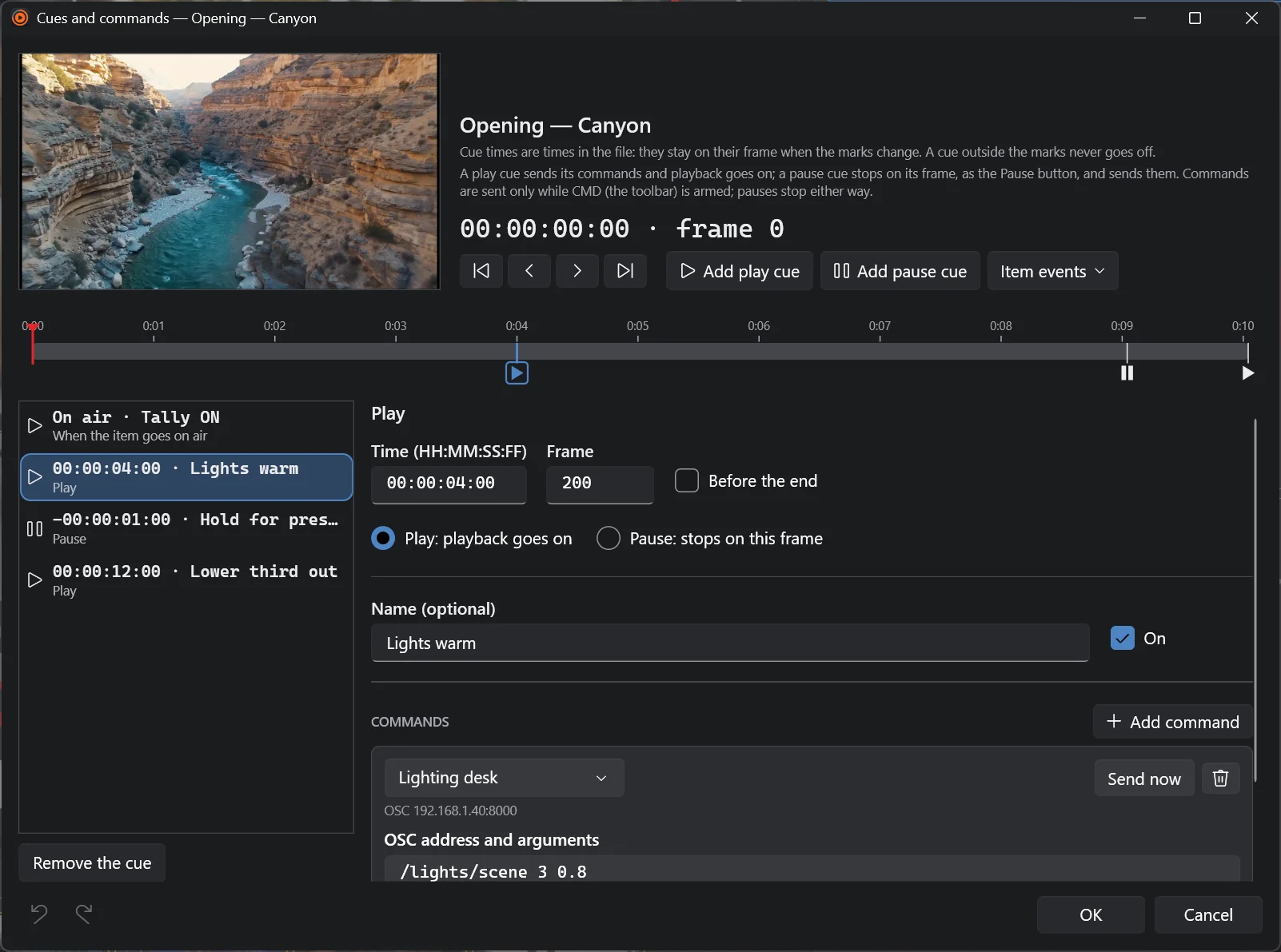
- Time cues on any frame of a clip (or before its end), and the events On air, End, Off air of every item.
- Pause cues that stop on the frame — and optionally resume after n seconds.
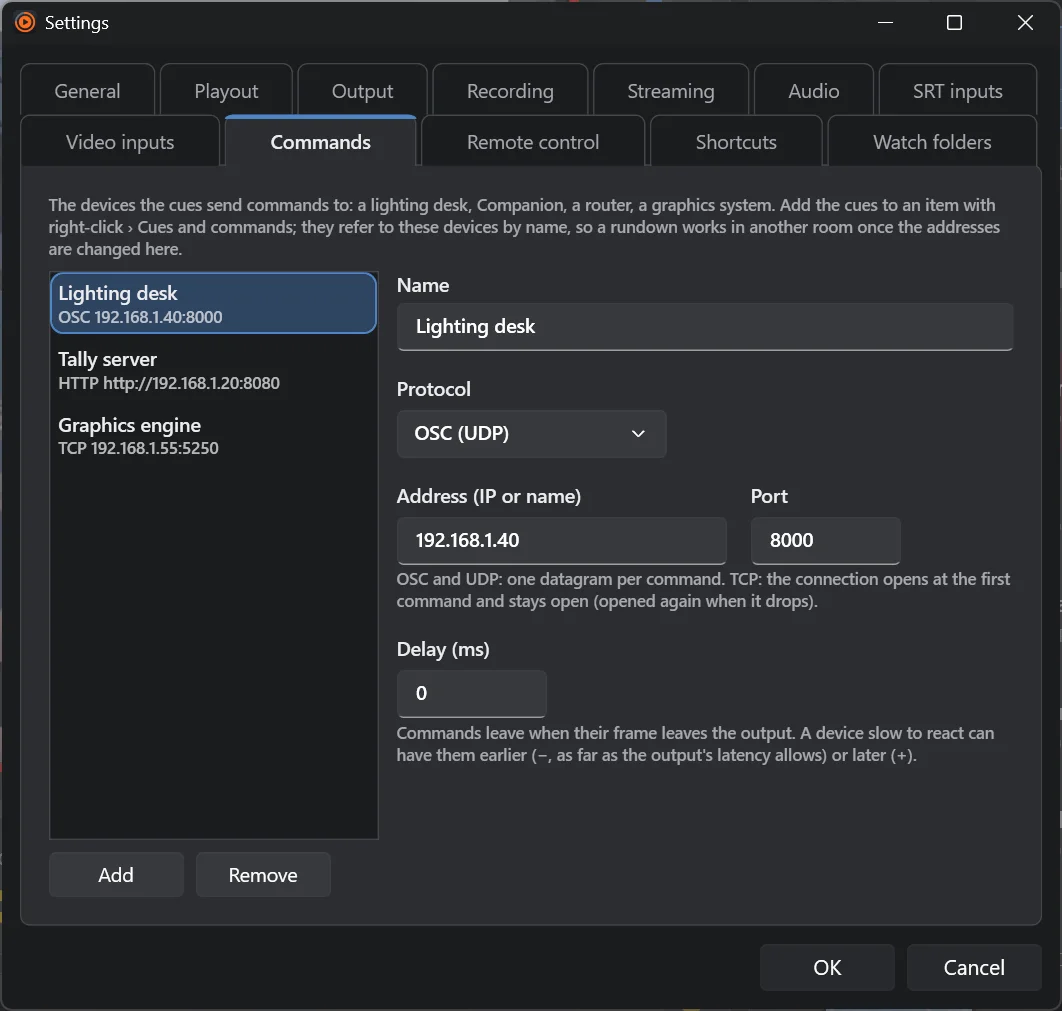
- Devices: UDP, TCP (connection kept open), OSC, HTTP / HTTPS with headers — lighting desks, Companion, QLab, Resolume, tally servers, graphics engines, routers.
- Variables in every command: {item} {cue} {cuetime} {file} {rundown} {time} {date} — escaped for URLs, JSON and OSC.
- Sent when the frame leaves the output, plus a per-device delay; results in the status bar and the log.
- CMD arm button: rehearse without firing anything.
- Cue marks drawn under the program timeline.
Build the showFile browser
- Folder tree with watch folders, New arrivals, favourites, quick access and the drives.
- Details, list and thumbnail views; natural name order; drag one or many files to the rundown or straight onto the program.
- Keyboard-safe: while the browser has the focus, the arrows never trigger Next on air.
Control it from elsewhereRemote control
- REST API and WebSocket, on this PC only or on the network, with an optional API key.
- Take, cue, next, previous, pause, seek, transitions, graphics, recording, stream, NDI, audio bed, schedule, repeat, items, selection, rundowns from a library folder — every operator feature.
- Real-time events and timing at the rate each client asks for.
- Native integration with Fantacore (Stream Deck, touch panels, sequences).
Every dayMade for the gallery
- Three themes: Studio Grey, Fantago Navy, Studio Light — switched live.
- Every shortcut is yours: Space, arrows, Page Up / Down, Enter, P, Home… or any key you choose (⌘ on a Mac).
- Single window, compact panels, no floating tool windows.
- Safe by design: never blocks the playout thread, logs everything, survives a missing file with the previous item still on air.


Where it runsPlatforms and formats
The Mac version is on its way: the column below says what it will do at launch.
| Windows 10 / 11 (64-bit) | macOS 14+ (Apple silicon) | |
|---|---|---|
| DeckLink SDI output and inputs | ✓ | — |
| Screen, NDI®, SRT, recording outputs | ✓ | ✓ |
| SRT, NDI®, camera inputs | ✓ | ✓ |
| Graphics, cues, automation, remote control | ✓ | ✓ |
| Sound card | WASAPI, ASIO | Core Audio |
Video formats read: anything FFmpeg reads — MP4, MOV, MXF, MKV, AVI, TS… with H.264, H.265, ProRes, DNxHD / DNxHR, MPEG-2, VP9, AV1… Images: JPEG, PNG, BMP, TIFF, GIF, WebP. Output formats: 720p, 1080i, 1080p and 2160p at 25 / 29.97 / 50 / 59.94.