
Download Fantacore for Windows, macOS, Linux and Raspberry Pi
Download Fantacore broadcast control software for Windows, macOS, Linux and Raspberry Pi. 30-day free trial of the Pro edition — no credit card required.
Choose your platform
Download the — release
Windows
- Windows 10 / 11 (64-bit)
- CPU: Intel Core i3 or better
- RAM: 8 GB minimum
macOS — Apple Silicon
- macOS 13.5 Ventura or later
- CPU: M1 / M2 / M3 / M4
- RAM: 8 GB minimum
macOS — Intel
- macOS 13.5 Ventura or later
- CPU: Intel Core i5 or better
- RAM: 8 GB minimum
Linux (x86-64)
- Ubuntu 20.04+ / Debian 11+
- CPU: Intel / AMD x86-64
- RAM: 4 GB minimum
Raspberry Pi
- Raspberry Pi OS 64-bit
- Pi 4 / Pi 5 recommended
- RAM: 4 GB minimum
What's New — v—
- Loading…
The 30-day trial
- The whole Pro edition for 30 days, no card asked for.
- 30 simultaneous devices (devices, panels and Stream Decks), 150 Logic Engine nodes, 4 prompters.
- Stream Deck Studio and Primary/Secondary redundancy included.
- Pricing will be announced shortly.
Previous versions
Every release stays available. If your licence includes updates up to a date, you can always install any version released on or before that date: your configuration opens in it as you left it.
| Version | Released | Windows | macOS | Linux / Raspberry Pi |
|---|---|---|---|---|
| Loading… | ||||
Elgato Stream Deck Plugin
For a seamless experience with Elgato Stream Deck, ensure you have installed the Stream Deck Software (v.7.0 or later) for Windows or Mac and the latest Stream Deck Fantacore Plugin.
If you are using the Stream Deck Studio model via IP connection, you do not need to install the Stream Deck app, as Fantacore connects directly to the device.
Download Stream Deck plugin for Windows or Mac
Download freeInstallation is automatic — no manual file copying required. Just follow these steps:
- Make sure the Stream Deck software (v7.0 or later) is installed and running on your computer.
- Download the Fantacore plugin using the button above.
- Double-click the downloaded file — the Stream Deck app will detect it and install the plugin automatically.
- No Internet access on the Fantacore computer? The same plugin is inside Fantacore: Stream Deck Builder → Connected Devices → Download Stream Deck plugin.
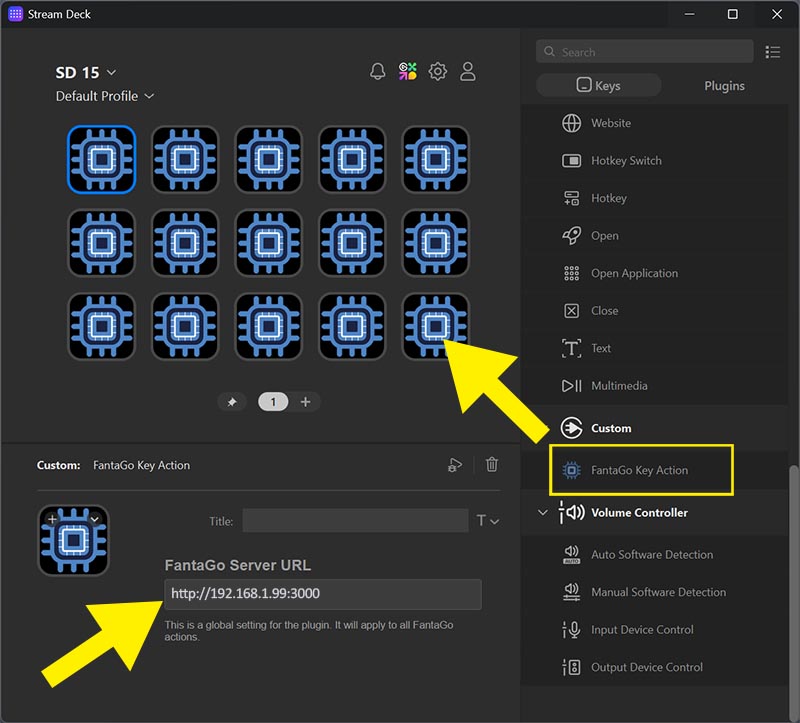
Once installed, open the Stream Deck app, drag and drop the Fantacore Key Action plugin — found in the list on the right — onto the keys you want to assign to Fantacore in the layout on the left.
After dragging the plugin onto the key, complete the configuration by entering the Fantacore server address and the port being used:http://192.168.1.99:3000
Below is the list of devices currently supported by Fantacore.
- Stream Deck Mini
- Stream Deck Classic
- Stream Deck XL
- Stream Deck Module
- Stream Deck Studio
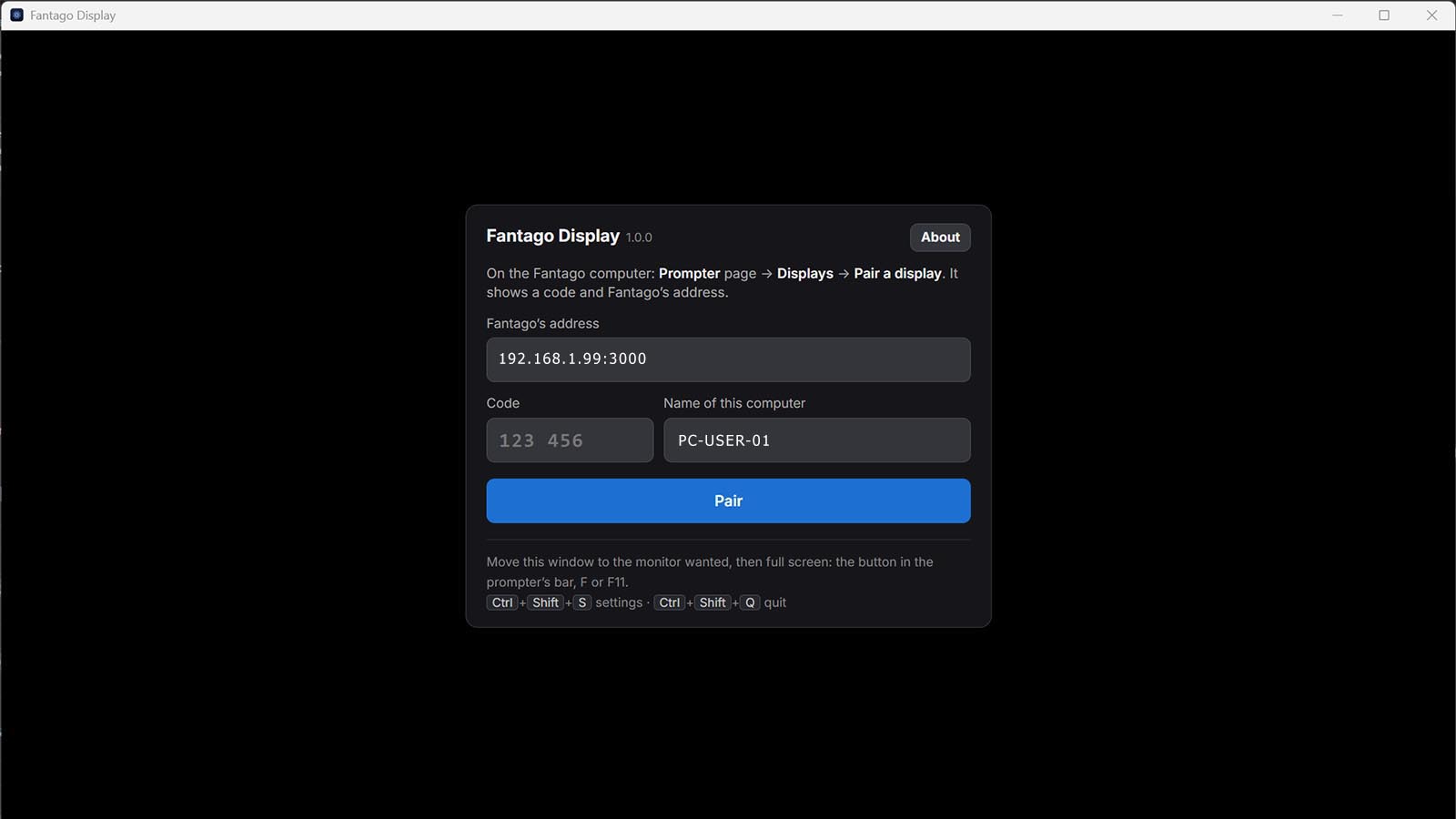
Fantacore Display — prompter viewer
A small free application for the computer driving a prompter monitor: it shows a Fantacore prompter in one ordinary window with no browser around it, on the monitor you choose, full screen, and keeps the screen awake. It pairs with a six-digit code issued on the Prompter page, reopens exactly where it was, and waits for Fantacore when it is not reachable. How the teleprompter works.
System requirements: Windows 10 or 11, or macOS 13 Ventura or later (a Mac on macOS 12 Monterey cannot run it: any browser can still show a prompter there). It needs Fantacore on the same network with at least one prompter. Any browser can show a prompter just as well — this is for a machine whose only job is the prompter. Fantacore Display has its own version number, 1.0.0, independent of Fantacore's, and does not announce its own updates: new versions are downloaded from this page.
Three steps, on the prompter computer:
- Install and start it. On Windows, the installer is not code-signed yet, so Microsoft Defender SmartScreen shows a warning: click "More info", then "Run anyway" — the same notice as for Fantacore itself. The macOS disk image is signed and notarized and runs on both Intel and Apple silicon.
- Pair it. It asks for the Fantacore address and a six-digit code, which you get from Prompter → Displays in Fantacore. The code lasts five minutes and is used once.
- Choose the prompter and the monitor, then put it full screen from the prompter bar's button (or F / F11). Ctrl+Shift+S reopens the setup, Ctrl+Shift+Q quits.
Removing a display from the Displays list in Fantacore stops its prompter at once and sends that computer back to pairing. If Fantacore is restarted or temporarily unreachable, Fantacore Display waits and comes back on its own, showing the prompter where it left it.